Why should I learn about Connect Commands?
When it comes to automating tasks in STK, Connect Commands stand out as an invaluable tool available to any STK Rocket Scientist! Whether you're conducting access reports for thousands of satellites with your ground sensor or loading satellites with updated databases daily using specific search filters, automation streamlines these processes. With tasks often becoming repetitive, STK Connect Commands offer the initial, straightforward step to mastering automation within STK. Moreover, the reasons for automating or integrating STK are numerous and diverse, ranging from needing specific calculation parameters like the cross-sectional area of a tumbling spacecraft to optimizing data collection schedules for ground stations. STK's rich API set enables the use of its powerful analytical engine within custom projects, facilitating tasks such as designing guidance laws for interceptor systems and conducting real-time and post-processing analysis.
STK Connect Commands represent the first step towards learning automation in STK. Indeed, even if you will use STK Object Model API, you will be able to execute Connect Commands with your script. In fact, most of the new STK features that come with the newest versions are often first implemented within Connect Commands before having their own Object Model definitions.
How can I get started with Connect commands directly in STK?
A great way to learn connect commands and test them is to use them directly inside of STK, without any implementation of any sort. You can use a simple tool called the HTML viewer in order to type in Connect command and execute them inside of your STK running instance. If you are a beginner with Connect command, this is a great way to understand their syntax and get familiar with how they affect your STK session.
Where can I find the Connect Commands Library?
The Connect Commands Library can be found in the STK Help at this address.
The library can be viewed in different ways. You can search for Connect Commands with different filters, which the most important are:
- Alphabetical Listing of Connect Commands: The Alphabetical listing includes all Connect commands, regardless of their groupings.
- Object Tools: Object tools manipulate and display data related to individual objects separately from their properties. They include functions like calculating access between objects, creating reports and graphs, determining vehicle or sensor swath, and generating a Walker constellation.
- Application Options: There are several Connect commands available to control application options.
- Astrogator related Connect Commands: Astrogator's Connect relationship diverges from other STK objects. This page covers the general structure and syntax of Astrogator Connect commands, while detailed commands and attributes are found in the table of contents of this help section.
- Aviator related Connect Commands: Configure all procedures, calculate any changes made to the aircraft object, or implement all changes across STK.
- 2D Graphics Window Commands: Connect commands are available to control the display of objects and the view in the 2D Graphics window.
- 2D Object Graphics Commands: Commands that allow you to control the 2D Graphics properties of an object.
- 3D Visualization Window Commands: Commands that enable you to configure and operate the 3D visualization window.
- STK Desktop Only Commands: Commands available only when running STK Desktop.
- Added or changed commands: Commands changes that come with each new version of STK.
What is a Connect Command typical synthax?
Single commands sent to Connect use the following format:
<CommandName> <ObjectPath> [<CommandData>]
Where:
- <CommandName>: is the name of a particular command (e.g., Load).
- <ObjectPath>: The STK instance (e.g., Scenario/stkDemo/Satellite/Shuttle) to which the <CommandName> directs action.
- [<CommandData>] <CommandData> fields modify a <CommandName> and may or may not be required. Please refer to the format of the individual commands for additional information.
Important Notes:
- Although the <CommandName> field isn't case sensitive, the <ObjectPath> is. <CommandData> may or may not be case sensitive.
- Multiple commands can be sent to Connect in one transaction by separating them with semicolons (;).
- <CommandData> fields modify a <CommandName> and may or may not be required. Please refer to the format of the individual commands for additional information.
You can find more information about Connect Commands Syntax here.
Connect Wildcard
In complex projects, initial stages often involve experimentation, where the first part is built without full details for subsequent phases. Sometimes, significant changes lead to a crossroads: starting anew or revising existing work. This dilemma is common when constructing scenarios in STK.
A common example to such situation would be this one: you developed a scenario with a large satellite constellation, each with an onboard sensor initially set with default properties due to unknown specifications. As details emerged, you sought to edit sensor properties efficiently. While manually editing each sensor via the Properties Browser seemed tedious, it wasn't the sole option. STK offers various methods to modify groups of objects efficiently. Among them:
- Multi-select:
- With this method you can select multiple objects in the Object Browser and open the Properties Browser to edit properties for all the selected objects at once. In some cases, you can simultaneously edit some, but not all, properties on a given properties page. In this case, the customer wanted to make all the sensors targeted at a facility object. Unfortunately, adding objects to the Assigned Targets list was not available.
- Copy and paste:
- With this approach, you create one version of the object as you want it, then use the copy and paste functions within the Object Browser to add duplicates of the object to the scenario. When pasting, the object’s name will be appended with an incrementing number. This approach could have worked for the customer, but would have required removing the old sensors and then renaming all the new sensors as they were inserted.
- Wildcard Connect:
Although you do may not have strong programming background, the ideal solution in such cases is using automation and therefore using Connect. The wildcard character (*) can be used in Connect Commands.
With the wildcard, you can apply a single Connect command to a group of objects in a scenario by pattern matching against their names. You can, for example, apply the command to all satellites that begin with "GPS", or you can apply it to all facilities, or to all sensors attached to all satellites.
How to use the Connect wildcard
The wildcard character (*) can be used in an <InstanceName> in a Connect <ObjectPath>. The wildcard can only be used in the <ObjectPath> for which the command is being sent, it can not be used in an <ObjectPath> (or <TruncatedPath>) that is one of the command parameters, except where explicitly stated in a command's documentation.
The wildcard character can not be used in any <ObjectClass> name.
If the wildcard is used in a command returns data, the returned data for each object represented by the path, will be separated with a keyword, MDATA@DataLength@, where DataLength is the number of characters in the returned data for that object.
The wildcard should not be used with commands that write to a file. Only one file will be written and it will contain the data for the last path found.
When a command is entered using a wildcard in the <ObjectPath>, the path is expanded into all possible instances and the command is called for each instance. If any of the commands Nack, then a Nack will be returned, even though some commands may have completed successfully. To have the command ignore Nacks and continue processing use the ConControl / WildcardIgnoreNacksOn command.
Some examples follow:
*/Satellite/GPS*
The command with this path will affect all Satellites whose name begins with "GPS".
Scenario/stkDemo/Satellite/espSat/Sensor/*Test
The command with this path will affect all Sensors, on the Satellite espSat, whose name ends with "Test"
Scenario/stkDemo/Satellite/Sat*/Sensor/*
The command with this path will affect all Sensors on all Satellites whose name begins with "Sat".
*/Satellite/*/Sensor/*
The command with this path will affect all Sensors on all Satellites.
Chains */Constellation/ConstObj Add Place/*
The command adds all Place objects in the scenario to a Constellation object.
Chains */Constellation/ConstObj Add Place/*/Transmitter/*
The command adds all Transmitters on a Place object to a Constellation.
Connect Command Example
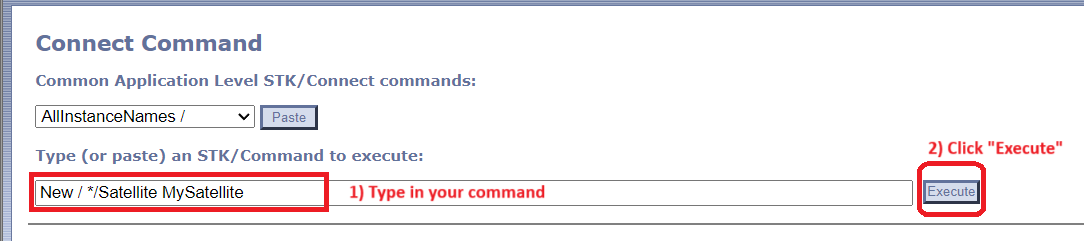
A simple connect command example for creating a new satellite on the current opened scenario's central body would be:
New / */Satellite MySatellite
Let's dig in this example and understand the structure behind this command.
The structure of a Connect Command is : <CommandName> <ObjectPath> [<CommandData>].
So our command name is New. If we look in the Alphabetical Listing of Connect Commands we will find that the command called "New" creates a new scenario or add a new object to the current scenario, and it will give us the following syntax rule:
New <ApplicationPath> <ClassPath> <NewObjectName> {NewOptions}
- In our command, the <ApplicationPath> is the path to the instance of the current Application. The format for this is /Application/<AppName>where <AppName> is the Application name, e.g. STK, ODTK, etc...
- Since only one Application can be opened at a time, our <ApplicationPath> can be abbreviated by /.
- <ClassPath> specifies the full class path of the object to be created.
- For instance, to add the satellite to the current scenario, the <ClassPath> is: */Satellite. We are using a wildcard because we don't need to specify the full path that resides behind the Satellite Class. It is a useful shortcut.
- <NewObjectName> is simply the name of your Object.
- MySatellite
- {NewOptions} is an optional argument and its possible argument differs for each type of Connect Command. The New Connect Command has three possible {NewOptions}:
- NoDefault: If specified, the object is created using hard coded defaults and does not load the object default file.
- Ignore: If specified, duplicates will be discarded without generating errors.
- CentralBody <CBName>: Create the new object on the specified Central Body. Using this option will set the default Central Body used for subsequent New commands.
- For example, Earth is the default central body for an object. If you wanted to specify that your new facility has to be located on Mars while not loading the default object file, you would use the following command:
- New / */Facility MyFacility CentralBody Mars NoDefault

You can easily find any information for a specific command and its parameters, syntax and special options in the Connect Command Library. Links displayed earlier in this article can lead you to the part of the library that you are most interested in. Each command listed in the library has a large description and explanation on the use of the command, as well as example commands.
How can I test commands directly in STK with the STK Web Browser?
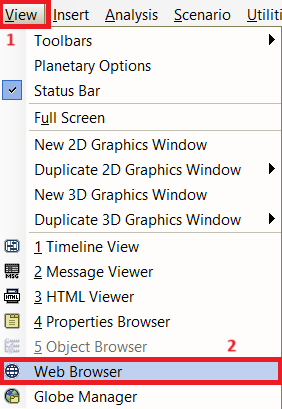
STK has an embedded tool present natively called the Web Browser. It can help you to in turn open a natively present GUI that interacts with your current STK scenario and send and test Connect Commands through it.
In order to open the Web Browser, please select the View tab, and in the dropdown menu select Web Browser:
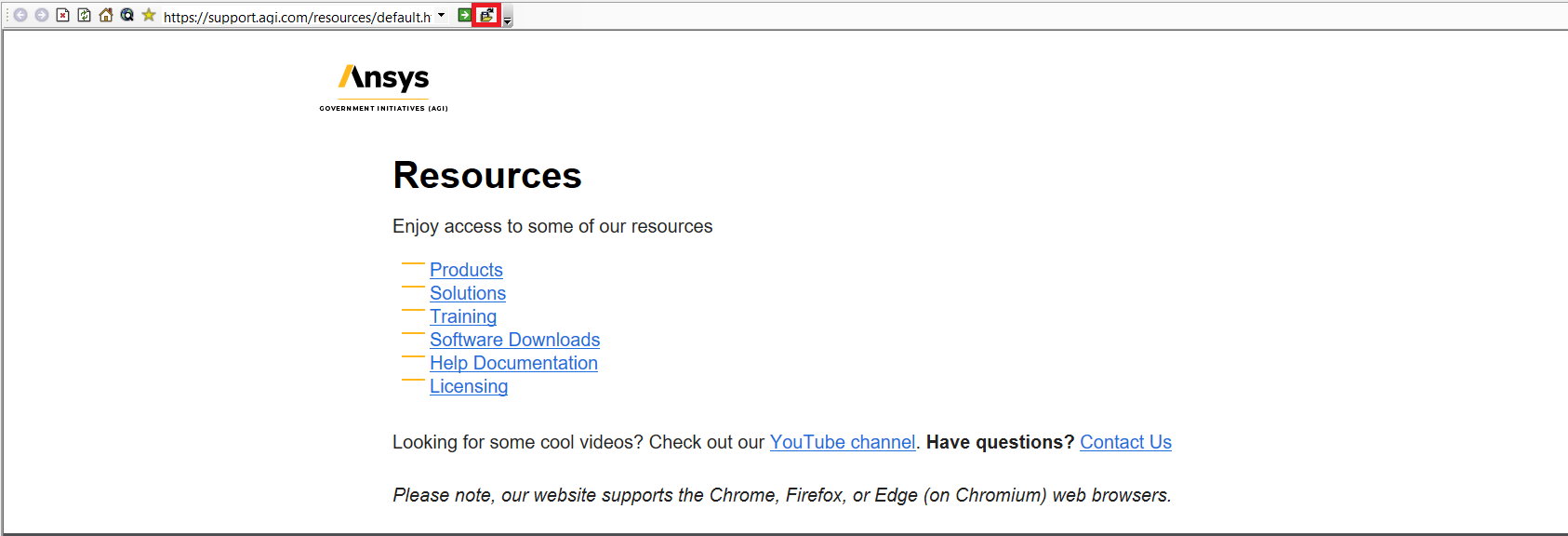
Once you click on the Web Browser, you should have a new window open with a search bar at the top and the web address of AGI Support loaded in. Near this search bar, you should be able to see a Folder Icon. Click on it:
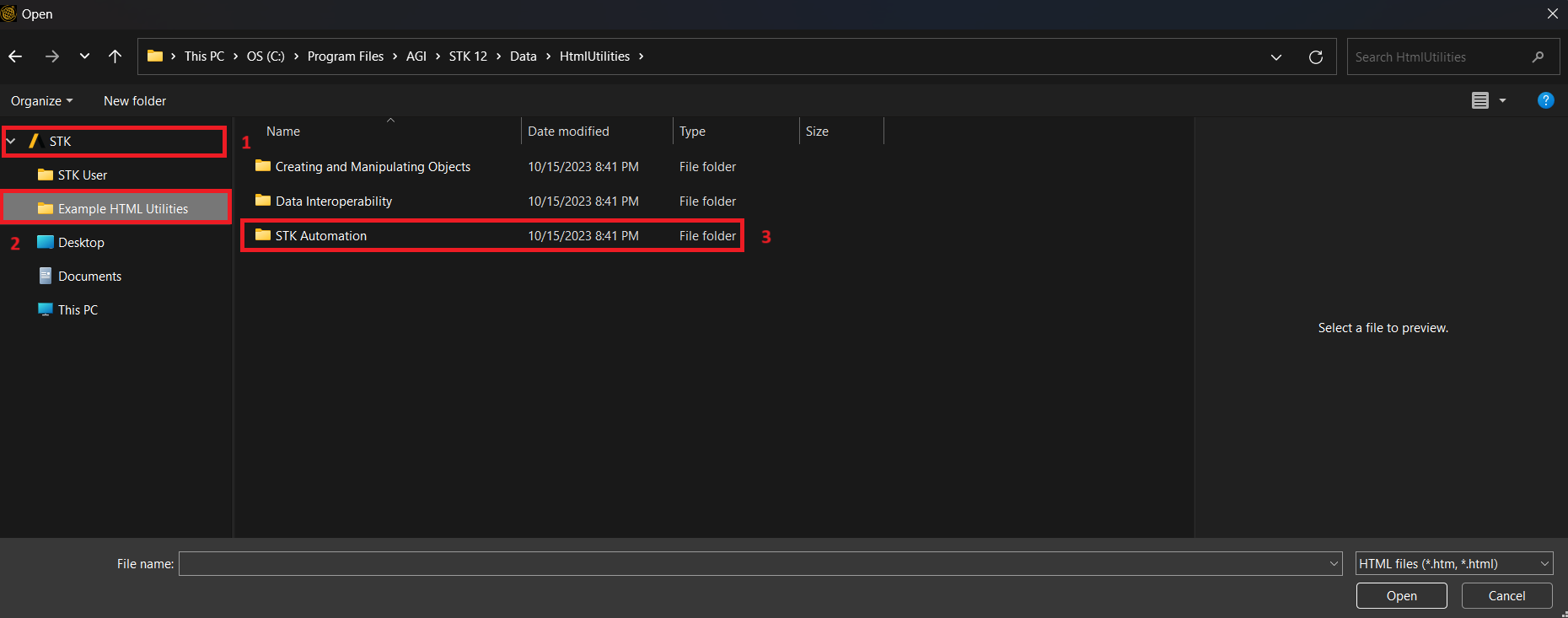
Once you click on the Folder Icon, your File Explorer will be opened to select which file you want to open with the Web Browser. Make sure you are in the STK Branch (1), then click on the Example HTML Utilities folder (2) and double-click on the STK Automation folder (3):
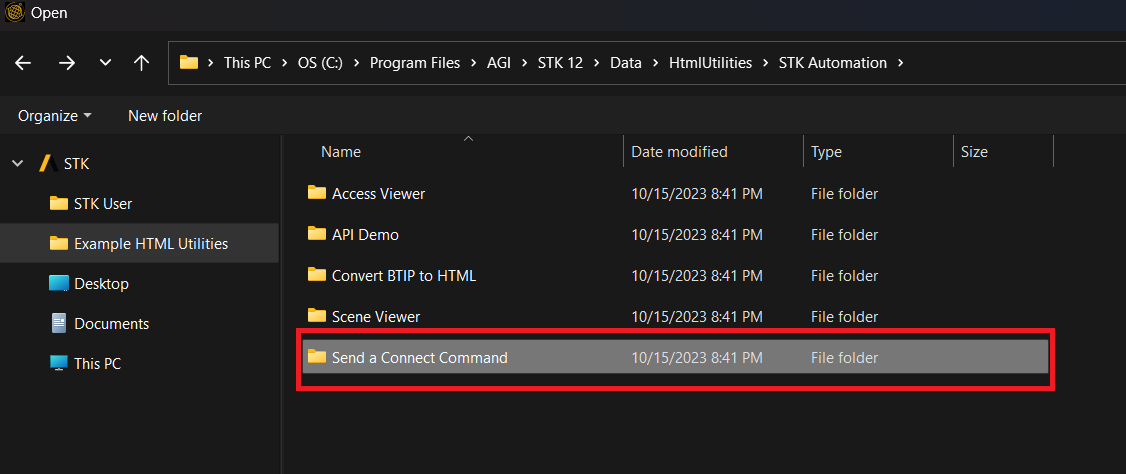
Then select the Send a Connect Command folder:
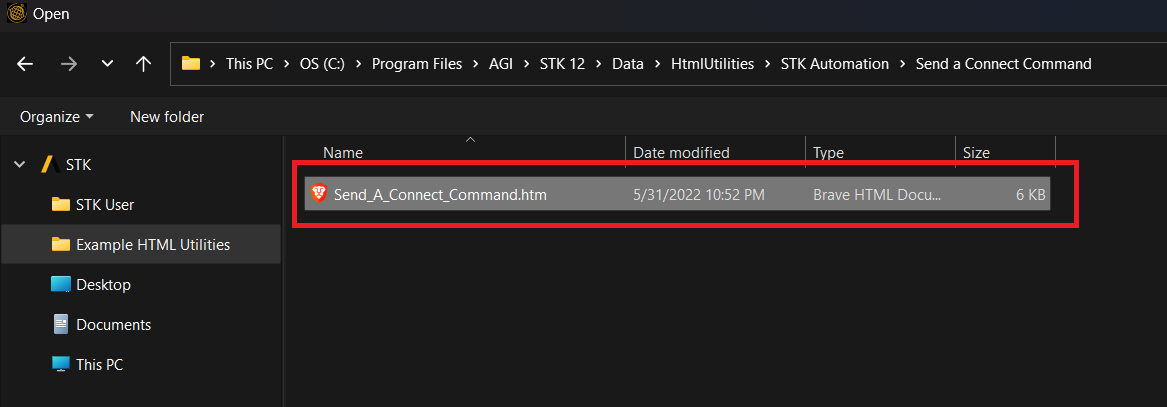
Finally, double-click on the .htm file to open it in the STK Web Browser:
Here is the interface that should now be available inside of your STK Window:

Let's try our satellite example command!
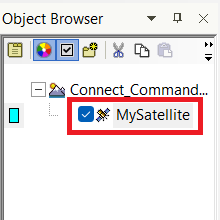
- You can now notice the new object in your component browser, but our satellite is not propagated so it is not visible in 3D yet. It just exists as a satellite object:
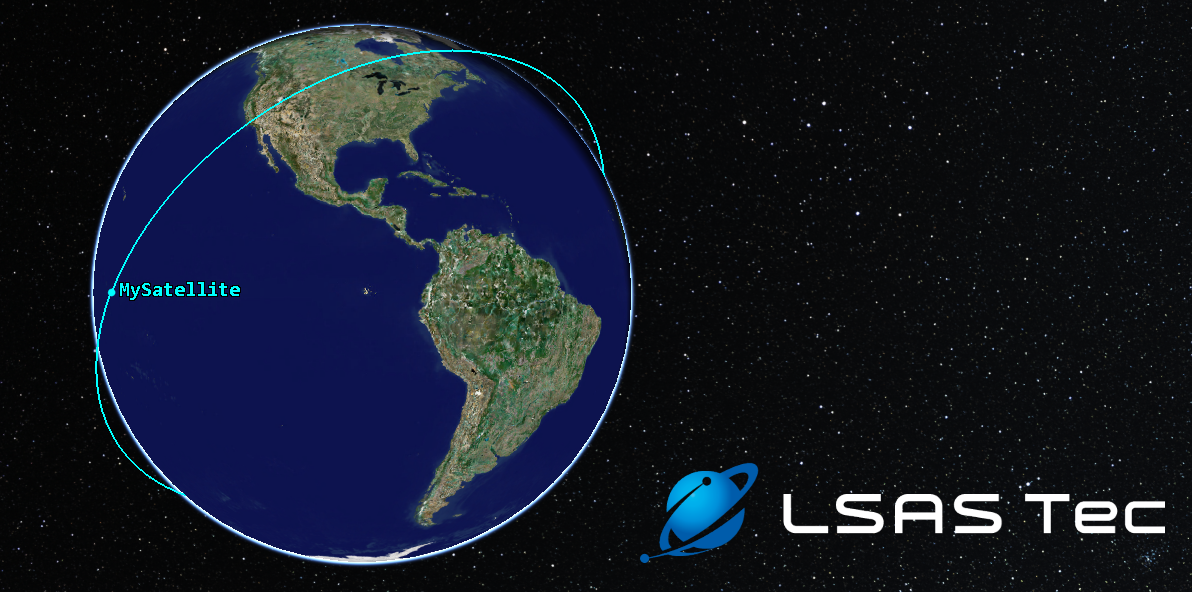
- Let's use a more complicated command called "SetState" with the SGP4 propagator which you can find at this address.
Here, we will propagate our specific MySatellite satellite object (<SatObjectPath> is */Satellite/MySatellite) using the SGP4 propagator for the whole scenario duration interval (UseScenarioInterval {TimeInterval} argument of which you can find documentation on this page under the DATE/TIME OPTIONS title). We will use a 60 seconds <StepSize> parameter, and the NORAD number of the ISS (25544) for the <SSCNumber> parameter. Our TLESource parameter will be defined with the option Automatic. Which means it will be directly sourced from the default way, in our case, AGI Online Servers:
Conclusion
With the knowledge of Connect Commands at your disposal, you're ready to embark on experimentation within the STK GUI! Delve into the STK Connect Command Library, exploring new commands and honing your syntax skills. Additionally, leverage the HTML Utility as a straightforward automation tool for various STK tasks, from access calculations to EOIR. As you become proficient with Connect Commands, consider advancing to the Object Model API to develop more intricate automation scripts using languages like Python, C++, C#, Java, Visual Basic, Matlab, and beyond. Your journey into STK automation is just beginning!
Useful Links
Was this article helpful?
That’s Great!
Thank you for your feedback
Sorry! We couldn't be helpful
Thank you for your feedback
Feedback sent
We appreciate your effort and will try to fix the article