
STK-Python API Integration-Basic Aircraft
STK has a variety of tools that can be integrated for automation and streamlining mission planning processes. Python is one of these tools. This lesson will go over how to use Python to propagate an aircraft into STK and change some of its parameters. Before we begin, be sure to follow the API installation guide at STK : LSAS Tec (freshdesk.com) to properly set up the API and your scenario.
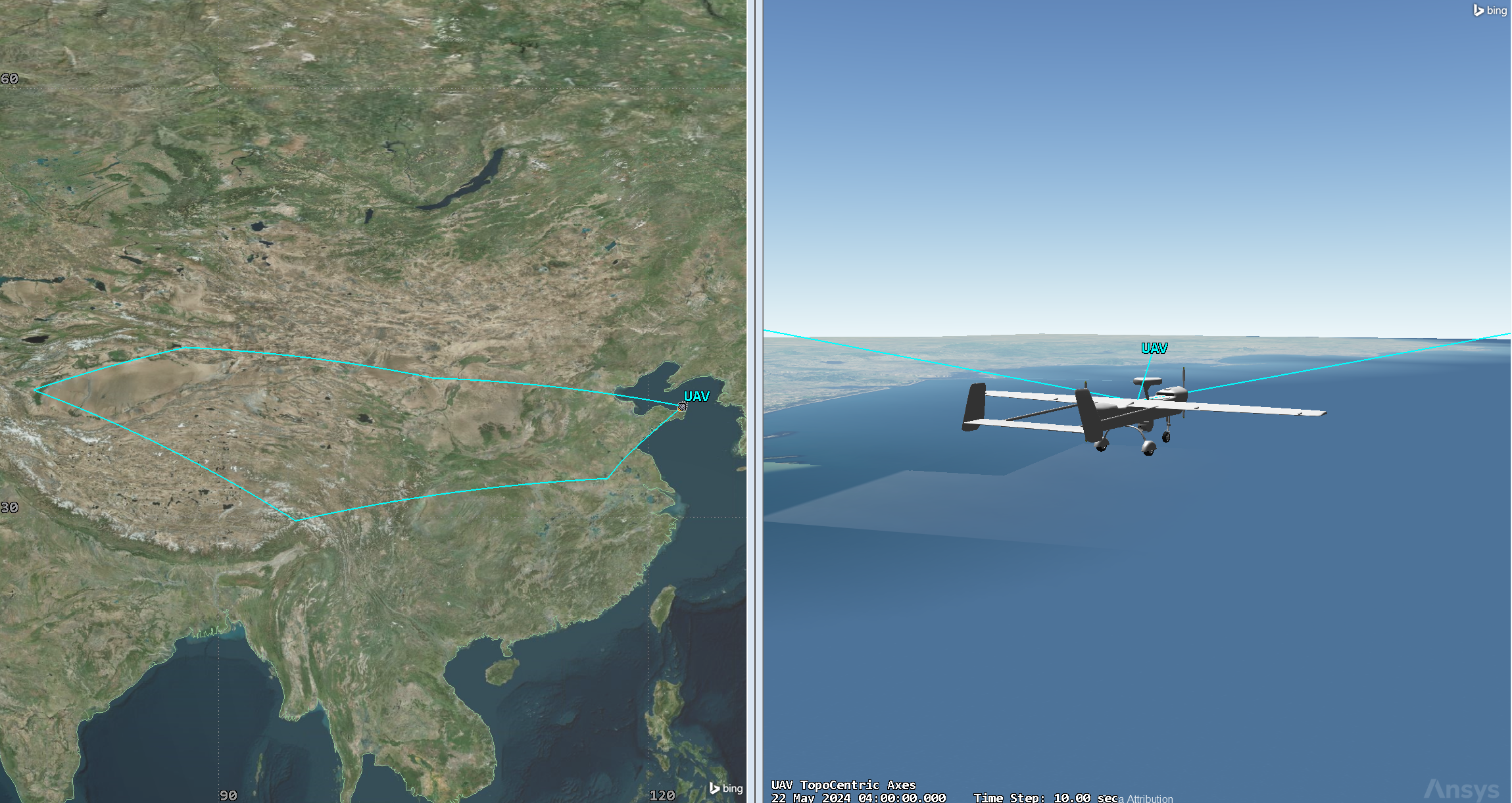
In this lesson, we will create an Aircraft that will have a trajectory following a path through Asia to monitor locations below the route using a sensor. These basics outlined in this lesson can be used to model any simple Aircraft missions using Python.
Resources
-STK 12.8 or newer
-STK Python API
-Python Capable Code Editor (ex-PyCharm Community Edition)
- STK-Python API Integration Knowledge Article
Adding the Aircraft
First, we are going to create an aircraft and change the desired model:
# Create an aircraft object
aircraft = root.CurrentScenario.Children.New(AgESTKObjectType.eAircraft, "UAV")
aircraft.SetRouteType(AgEVePropagatorType.ePropagatorGreatArc)
root.ExecuteCommand(r'VO */Aircraft/UAV Model File "C:\Program Files\AGI\STK 12\STKData\VO\Models\Air\uav.mdl"')
The root.ExecuteCommand line allows us to run an STK Connect Command straight in Python. This connect command allows us to change our Aircraft into the UAV model from the STK Database.
After that, we will define our Route Properties. In this case, we will be using a Great Arc Propagator with defined waypoints:
# Define route properties
route = aircraft.Route
route.Method = AgEVeWayPtCompMethod.eDetermineTimeAccFromVel
route.SetAltitudeRefType(AgEVeAltitudeRef.eWayPtAltRefMSL)
Next, we will define the waypoints we want our aircraft to travel over. You can add as many waypoints as you like:
# Define waypoints
waypoints_data = [
(37.58955, 127.00300),
(37.27856, 116.51423),
(34.0522, 118.2437),
(37.58955, 127.00300)
]
Following that, we will need to make sure our aircraft knows how to travel to these points. Here is also where we will define the speed and altitude of our mission:
# Add waypoints to the route
for lat, lon in waypoints_data:
waypoint = route.Waypoints.Add()
waypoint.Latitude = lat
waypoint.Longitude = lon
waypoint.Altitude = 6.096 # km
waypoint.Speed = 0.102888888888 # km/sec
Finally, we want to propagate our route:
# Propagate the route
route.Propagate()
We can also edit the Display Data using Python to give us specifics about the Lattitude, Longitude, and Altitude elements of our Aircraft.
To do this we must run the following code:
aircraft.VO.DataDisplay.RemoveAll()
datadisplay = aircraft.VO.DataDisplay.Add('LLA Position')
datadisplay.FontSize = AgEVOFontSize.eMedium
datadisplay.TitleText = 'UAV LLA'
datadisplay.IsShowNameEnabled = False
datadisplay.IsVisible = True
Adding the Sensor
To visualize what an aircraft’s instruments may be able to view, we can add a sensor and define it:
sensor = aircraft.Children.New(AgESTKObjectType.eSensor, 'Monitor')
 sensor.CommonTasks.SetPatternRectangular(5,5)
In later tutorials, we can use this alongside built-in STK tools to compute access over a given area.
Next Steps
With a running instance of STK, you can run this code from your preferred Python code editor to propagate a new aircraft. You can copy the code to increase the number of aircraft or change the code to use a different model or waypoint. With code like this, it is possible to much more rapidly change parameters based on the mission. To see more tutorials on STK Python Integration, please visit STK : LSAS Tec (freshdesk.com)
If you have any further questions or need assistance, we are here to help! Our dedicated Tec-Support team is ready to provide prompt and personalized assistance tailored to your needs. Please don't hesitate to reach out by submitting a ticket by going to https://lsas-tec.freshdesk.com/support/tickets/new. We look forward to assisting you and ensuring a positive experience.
Thanks,
LSAS Tec-Support Team
Was this article helpful?
That’s Great!
Thank you for your feedback
Sorry! We couldn't be helpful
Thank you for your feedback
Feedback sent
We appreciate your effort and will try to fix the article