STK-Python Compute Access
STK has various tools that can be integrated for automation and streamlining mission planning processes. Python is one of these tools. Python can be used with built-in STK tools to calculate the access a sensor has over a given area during a specified period. This tutorial works with either the STK-Python Basic Aircraft or STK-Python Basic Satellite training located at STK : LSAS Tec (freshdesk.com). We will use the scenarios we already created in conjunction with the new code to determine access over the globe.
Resources
-STK 12.8 or newer
-STK Python API
-Python Capable Code Editor (ex-PyCharm Community Edition)
Creating the Coverage Definition Tool and Figure of Merit
First, we must create and define a Coverage Definition Object. If you are attempting to compute access for the satellite, use the following code to create a Global Coverage Definition:
coverage = scenario.Children.New(AgESTKObjectType.eCoverageDefinition, 'GlobalCov')
coverage.Grid.BoundsType = AgECvBounds.eBoundsGlobal
covGrid = coverage.Grid
Res = covGrid.Resolution
Res.LatLon = 6 # deg
Or, if you are attempting to compute access for the aircraft, use the following code. First, we must define the target region:
areaTarget = root.CurrentScenario.Children.New(AgESTKObjectType.eAreaTarget, 'TargetRegion')
 root.BeginUpdate()
 areaTarget.AreaType = AgEAreaType.ePattern
 patterns = areaTarget.AreaTypeData
 patterns.Add(37.26134, 116.63154)
 patterns.Add(34.26336, 116.63154)
 patterns.Add(34.26336, 121.71344)
 patterns.Add(37.26134, 121.71344)

 root.EndUpdate()
 areaTarget.AutoCentroid = True
Then we create the Coverage Definition Object for the aircraft scenario:
coverage = scenario.Children.New(AgESTKObjectType.eCoverageDefinition, 'RegionCov')
 coverage.Grid.BoundsType = AgECvBounds.eBoundsCustomRegions
 covGrid = coverage.Grid
 bounds = covGrid.Bounds
 bounds.AreaTargets.Add('AreaTarget/TargetRegion')
 Res = covGrid.Resolution
 Res.LatLon = .5   # deg
After that, we must create and define our Figure of Merit. This will be the same for either scenario:
fom = coverage.Children.New(AgESTKObjectType.eFigureOfMerit, 'SimpleCoverage')
 fom.SetDefinitionType(AgEFmDefinitionType.eFmSimpleCoverage)
Assigning the Sensor as an Access Tool
We will then use Connect commands to assign our Sensor as an access tool for the Coverage Definition Object. In the case of the Satellite, input the following:
root.ExecuteCommand("Cov */CoverageDefinition/GlobalCov Asset */Satellite/ClimateWatch/Sensor/Monitor Assign")
 root.ExecuteCommand("Cov */CoverageDefinition/GlobalCov Asset */Satellite/ClimateWatch/Sensor/Monitor Activate")
In the case of the Aircraft, input the following:
root.ExecuteCommand("Cov */CoverageDefinition/RegionCov Asset */Aircraft/UAV/Sensor/Monitor Assign")
 root.ExecuteCommand("Cov */CoverageDefinition/RegionCov Asset */Aircraft/UAV/Sensor/Monitor Activate")
Computing Access and Displaying Data
Next, we will compute access with the following code:
coverage.ComputeAccesses()
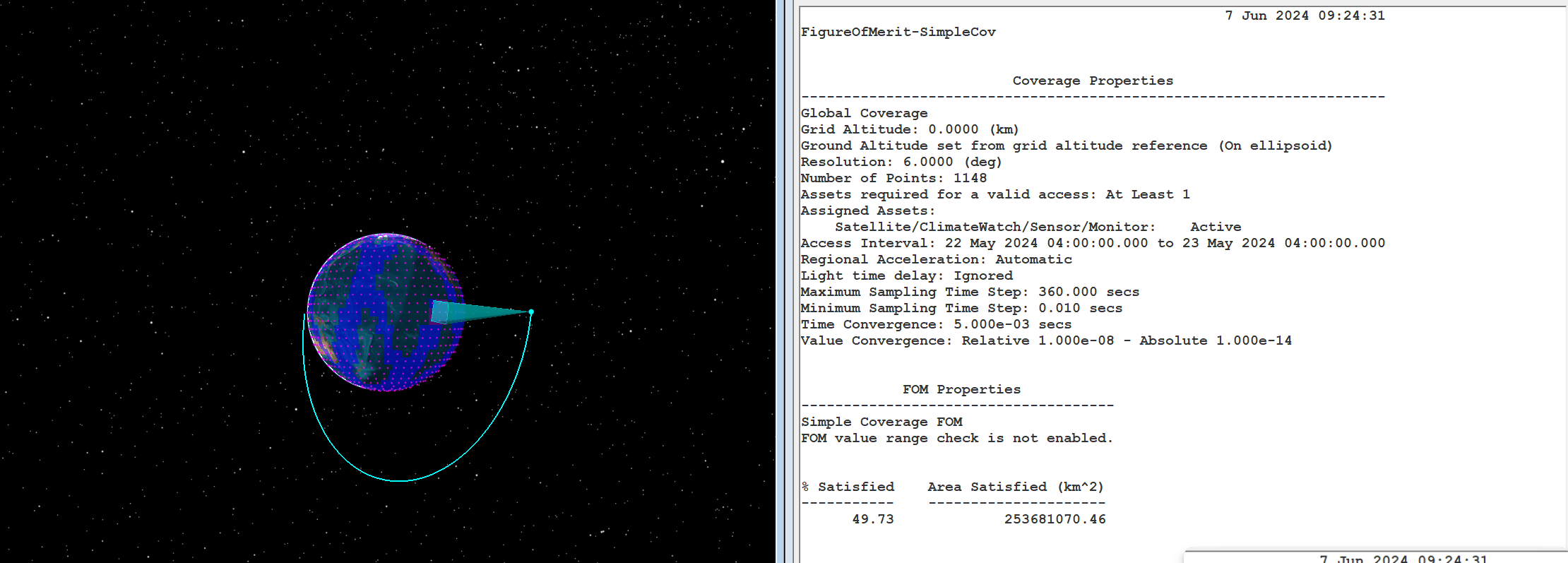
Finally, we will generate a report that shows the Percent Satisfied of the Coverage Region over the time interval:
root.ExecuteCommand("ReportCreate */CoverageDefinition/GlobalCov/FigureOfMerit/SimpleCoverage Style \"Percent Satisfied\" Type Display")
Note that you’ll have to change the name of the Coverage Definition Object to RegionCov for the aircraft scenario.
Next Steps
With a running instance of STK, you can run this code from your preferred Python code editor to Compute Access and generate a Percent Satisfied Report for either the Aircraft or Satellite Scenarios we created earlier. These parameters can be expanded, and the type of graph can be adjust to gather the data that you need for your mission. To learn more about STK, vist t STK : LSAS Tec (freshdesk.com).
If you have any further questions or need assistance, we are here to help! Our dedicated Tec-Support team is ready to provide prompt and personalized assistance tailored to your needs. Please don't hesitate to reach out by submitting a ticket by going to https://lsas-tec.freshdesk.com/support/tickets/new. We look forward to assisting you and ensuring a positive experience.
Thanks,
LSAS Tec-Support Team
Was this article helpful?
That’s Great!
Thank you for your feedback
Sorry! We couldn't be helpful
Thank you for your feedback
Feedback sent
We appreciate your effort and will try to fix the article