Adding Celestial Background to STK
This tutorial will demonstrate how to add Celestial Imagery from the AGI database to STK in order to enhance the look of your simulations.
- Downloading the Imagery
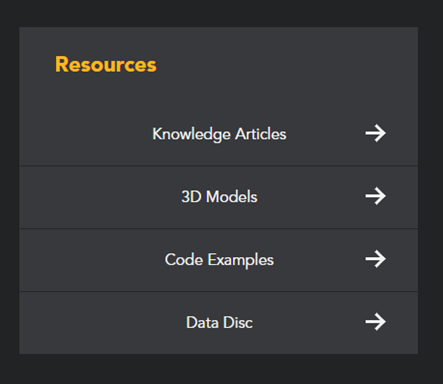
To download the celestial imagery model, go to the AGI Support website (www.agi.com/support) and from the Resources Menu, select the Data Disc option.
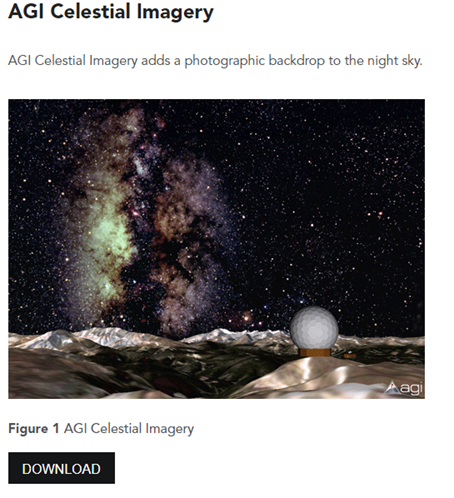
In the Data Disc site, Navigate to AGI Celestial Imagery and select Download:
Once the .zip file is downloaded, unzip the folder and move to a folder titled “AGI Celestial Imagery”.
- Adding Imagery to your STK Scenario
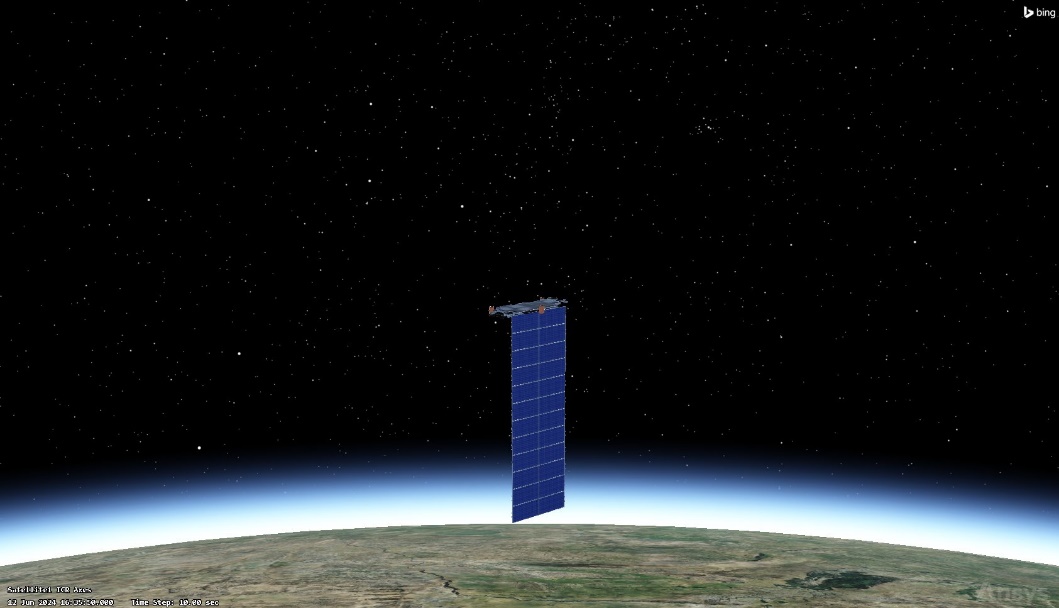
Once you open your STK file, take not of the background, which does display stars, however it is fairly generic.
Open the properties of the 3D Graphics Window and select the Celestial tab.
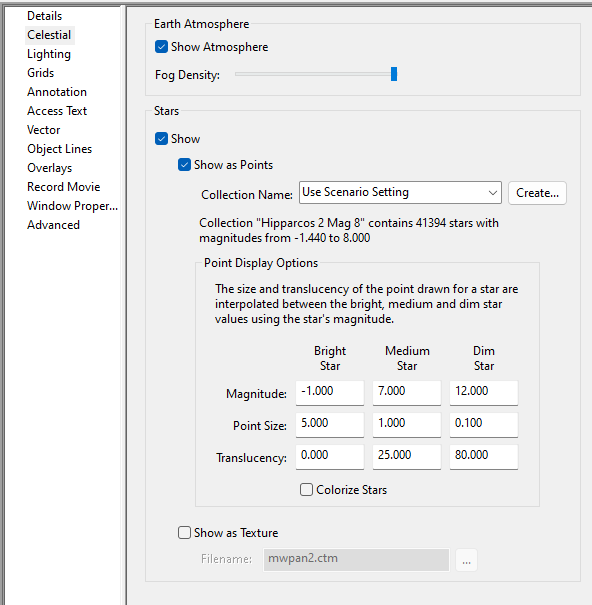
To add the celestial Background, Select the “Show as Texture” checkbox. For locating the file, click the ellipsis next to the filename box and navigate to the STK install location and open the “AGI Celestial Imagery” folder and from there, select the mwpan2.ctm file.
Press OK to apply the changes and close the properties window. Your window should now look like this:
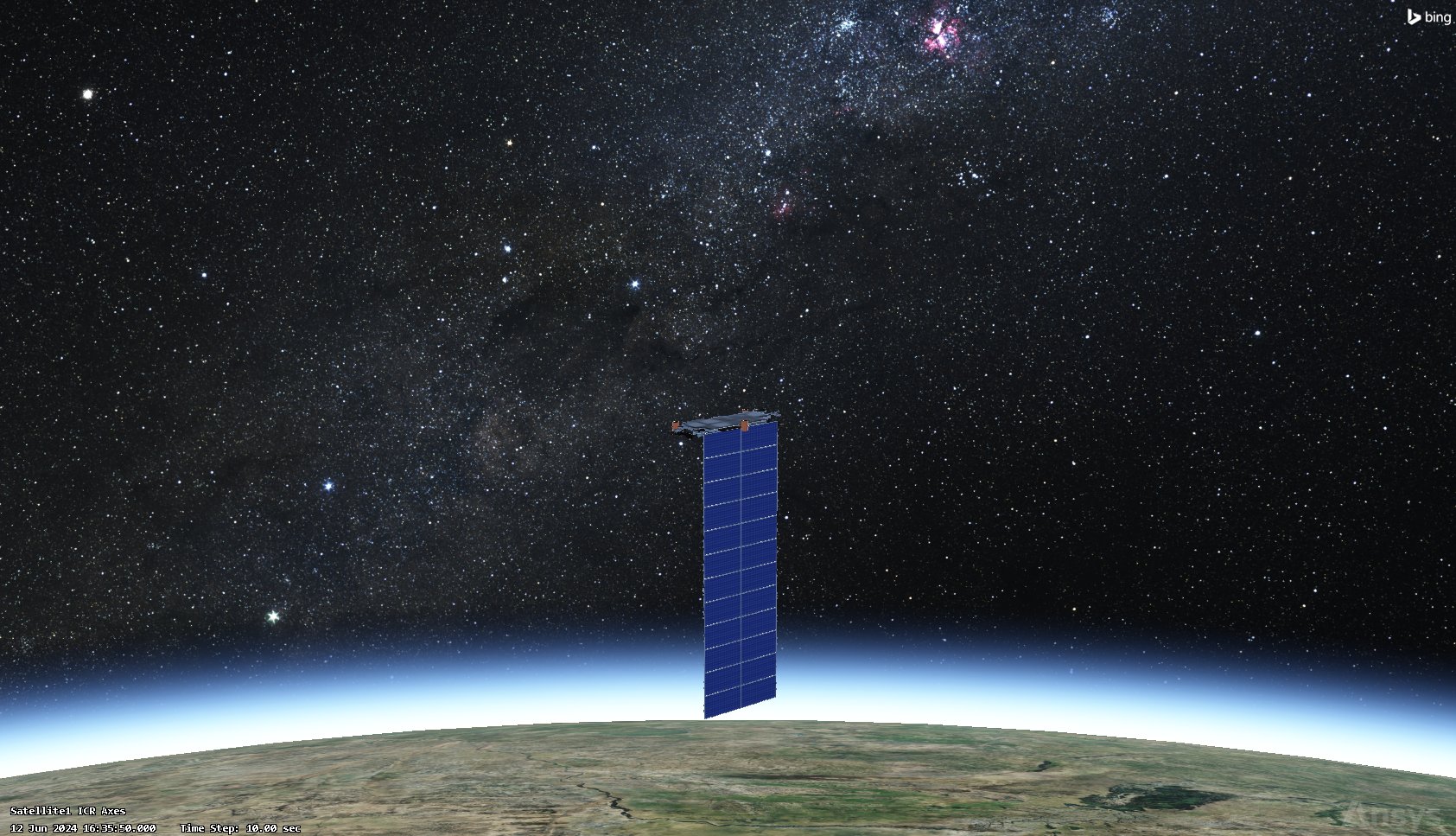
You have now added a celestial background to your scenario. If you are interested in adding a different background, there are several other backgrounds that can be downloaded from the Data Disc.
If you have any further questions or need assistance, we are here to help! Our dedicated Tec-Support team is ready to provide prompt and personalized assistance tailored to your needs. Please don't hesitate to reach out by submitting a ticket by going to https://lsas-tec.freshdesk.com/support/tickets/new. We look forward to assisting you and ensuring a positive experience.
Thanks,
LSAS Tec-Support Team
Was this article helpful?
That’s Great!
Thank you for your feedback
Sorry! We couldn't be helpful
Thank you for your feedback
Feedback sent
We appreciate your effort and will try to fix the article