In STK, static and dynamic objects have associated 3D models that can be used both for visualization and analysis. This article will help provide some additional information on how to view and use model files for analysis as well as some information about the STK 3D model file formats.
Examples of Analysis Using 3D Models:
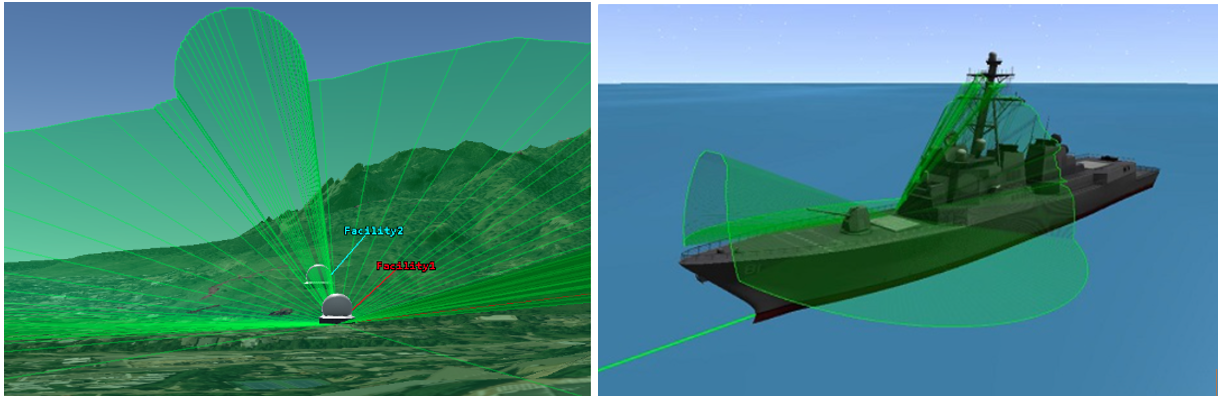
Line of Sight Blockage: You can constrain the field of view of objects with respect to their own dimensions or the dimensions of other objects. Below shows a Body Mask, which reduces the Line of Sight of a payload due to the 3D model blocking certain regions. To find out more, please see How to Model Line of Sight Constraints in STK.
Solar Panel Analysis: You can use the 3D geometry of your craft for Solar Panel power generation modeling: See STK Tip: Using the Solar Panel Tool (youtube.com) for more information.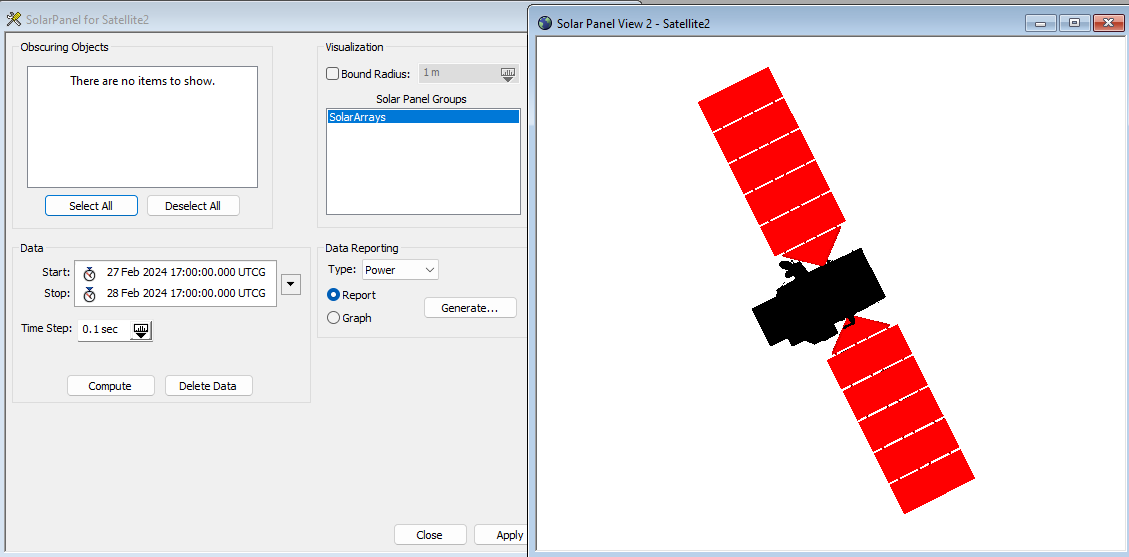
Electro Optical and Infrared Payload Analysis: You can generate synthetic camera renders of a target object in STK’s EOIR module See Defining Target Models for Imaging for more information.
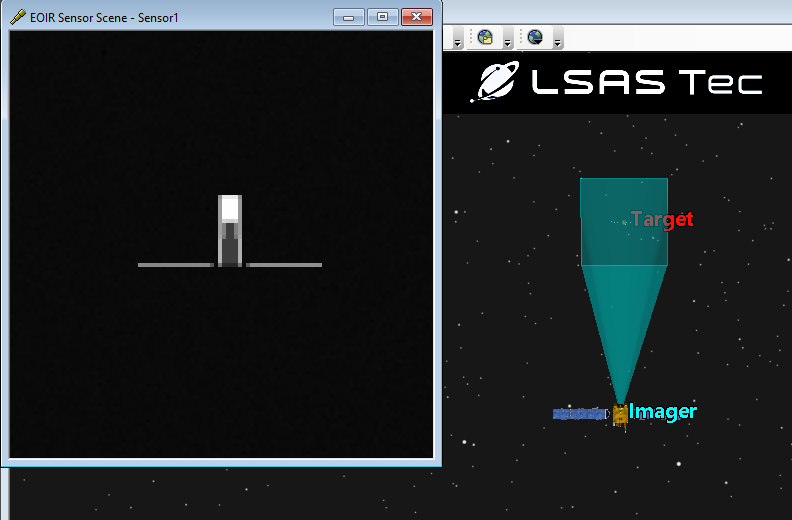
Note: The last of these examples requires a special type of model file which is covered by the linked article.
Finding Model Files:
Your STK install comes with a large library of land, sea, air and space models that can be found in the following directory by default:
(C:\Program Files\AGI\STK 12\STKData\VO\Models)
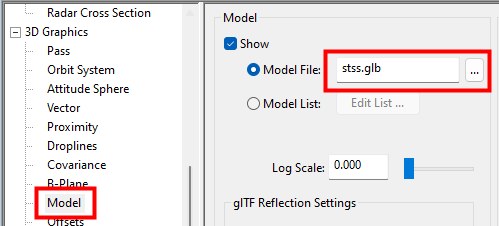
Across these folders is more than 300 3D models natively available in STK. You can use these models for an STK object by opening the STK object’s properties page and going to 3D Graphics -> Model and click the ellipsis to select a file from the file library.
AGI also stocks a large additional library you can access online via the following link. For example, if you search Falcon 9, there is an STK .mdl file available for download for free on AGI’s website. These models can be found on the following page:
Additional Models: (Online) Additional 3D models are available online from many different designers for different costs. Here are some websites that can be used.
Viewing Model Files:
With STK 12.9, STK comes with a new tool called STK Model Viewer that can load any STK-compatible model files for viewing. This tool does not require an STK license to run and allows you to view and test your models and model articulations as they would be seen in STK without loading them into an STK scenario. This is a useful tool for helping to flesh out 3D models before bringing them into an STK scenario, especially for teams sharing a limited number of STK licenses.
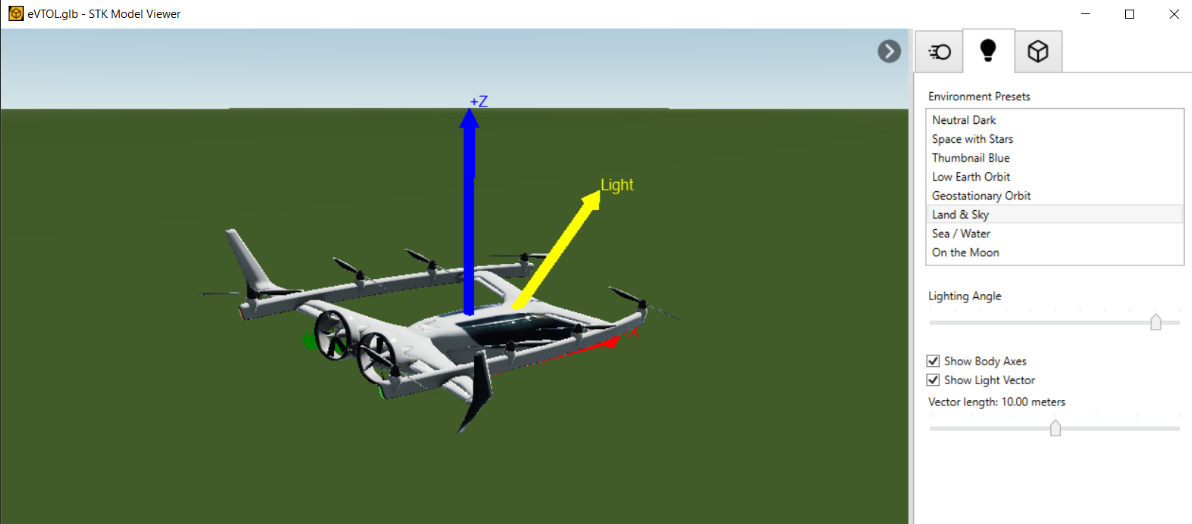
If you have STK installed, you can open the model viewer by searching “STK Model Viewer” in your Windows search bar. If you do not have STK installed, you can go to the AGI downloads Page and download the STK Pro .zip file.
Types of model files
There are three types of model files used in STK (excepting the special EOIR target model mentioned above). These are the legacy .mdl filetype, the supported but not recommended COLLADA (.dae) filetype, and the newer .gltf filetype, which is the recommended format for STK. Shown below is the old default satellite model in STK which uses the .mdl filetype, and the “Upgraded Model” which uses the newer .gltf filetype:
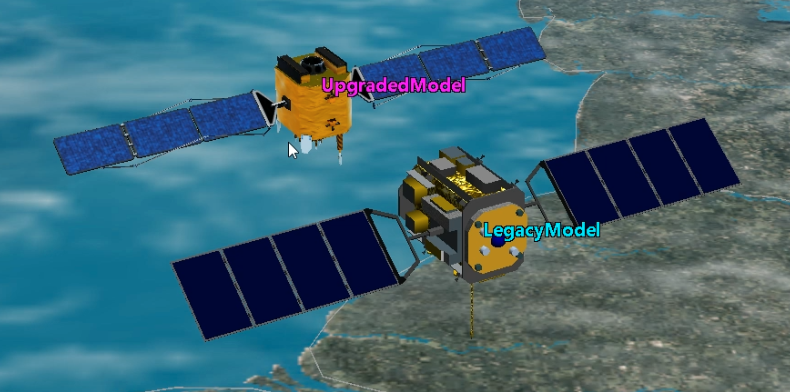
The “Legacy” and “Upgraded” models can be found in the STK Space models folder as “satellite.mdl” and “satellite.glb” respectively. The .glb is simply a .gltf packaged into a binary.
The .gltf:
The .gltf is a standardized file format used for 3D models and scenes, and is the recommended filetype for use in STK. This filetype can include articulations and advanced textures and reflections. These .gltf files are often augmented with an additional .gmdf metadata file which defines additional information such as articulations, attach points, and other special graphics. STK can ingest raw .gltf files as text files, as well as the .glb file, which packages all the metadata and resources into a single binary file.
A .gltf file can be created in Blender, a free, open-source 3D design software. Blender allows you to create a 3D model from scratch or import existing CAD models. Additional metadata such as articulations and solar panel groups can be modeled in VS Code.
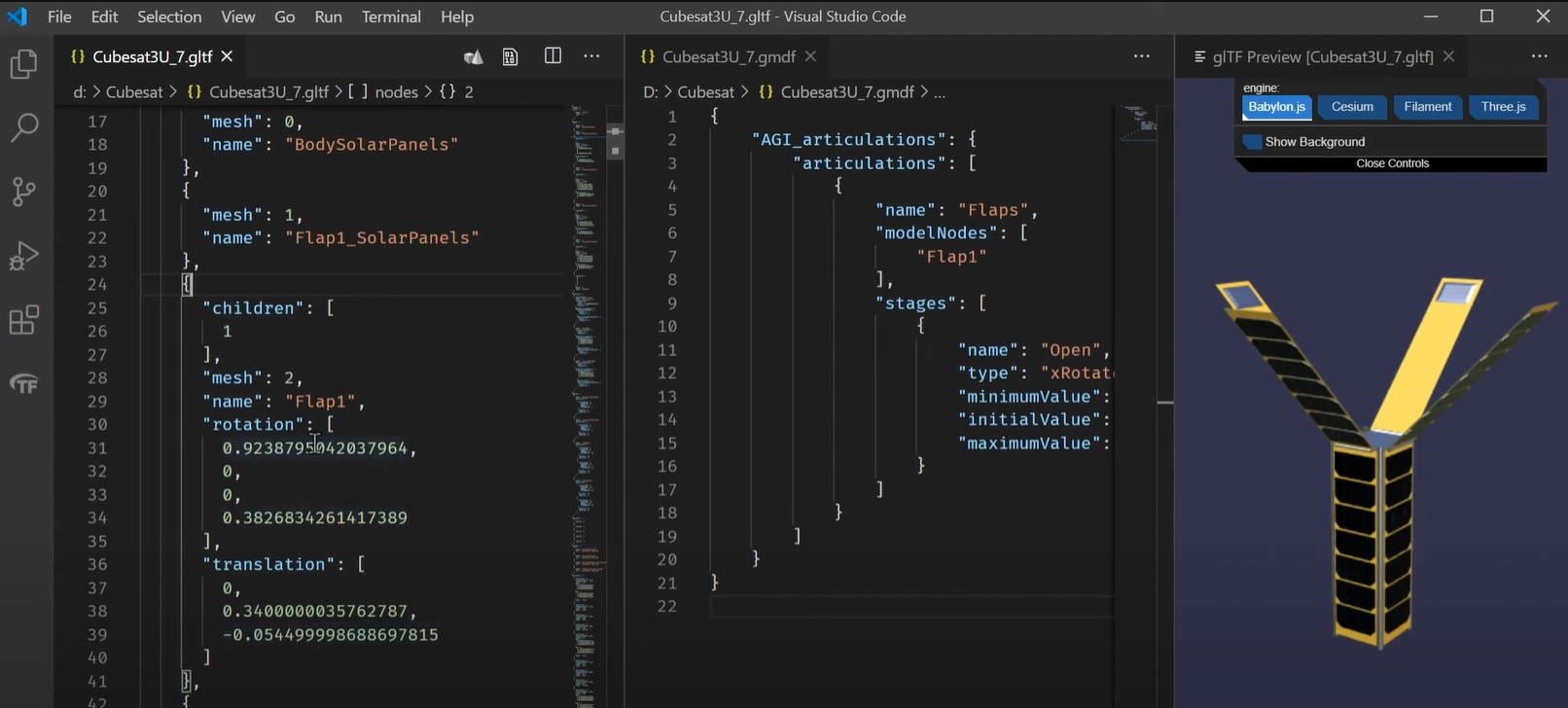
VS Code includes extensions for editing and previewing your .gltf file and functions for packaging the .gltf + additional data into a .glb binary, namely STK GMDF Tools by Analytical Graphics, and gLTF Tools by CesiumJS.org.
There is a video series that covers the process of authoring .gltf/glb files from scratch linked here:
gLTF Model Authoring Pipeline - YouTube
For additional information, as well as guidance for defining solar panels on .gltf models (which is not covered in the video series,) see the following help page:
glTF Models (agi.com)
The .mdl:
The .mdl filetype is a simple ASCII text file format that defines a set of simple shapes and skins that make up a 3D model. Each shape is defined as a component with various parameters that define its shape, size and color. A .mdl file can also include articulations, such as gimballed solar panels. Shown below is a snippet from the “satellite.mdl” text file.
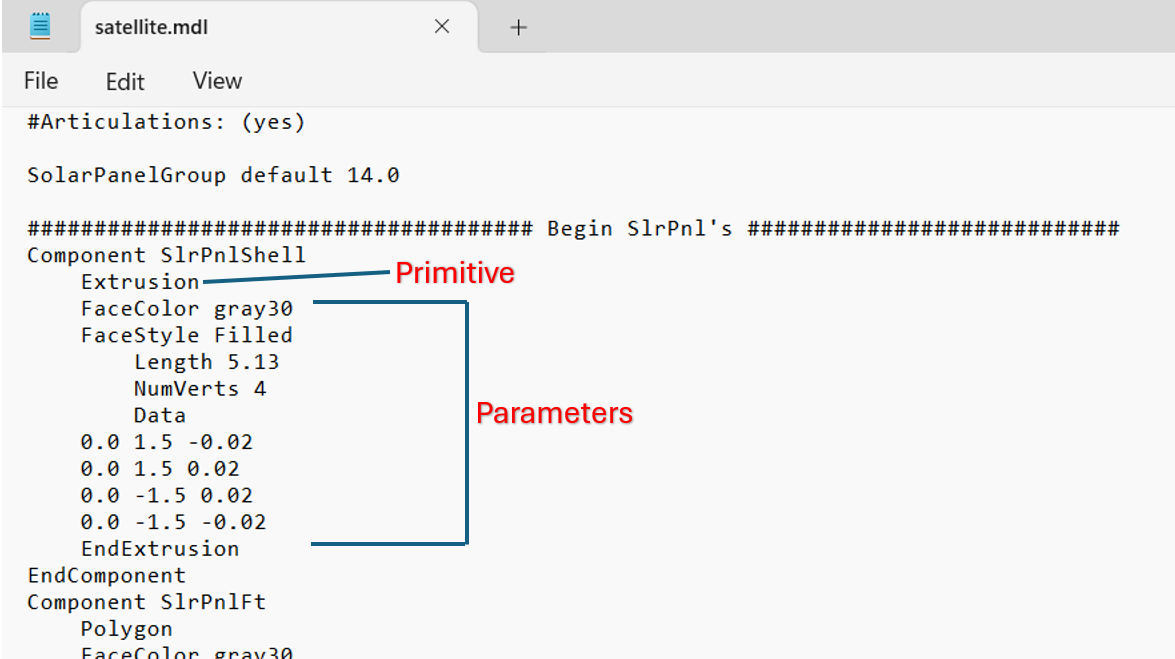
Although .mdl files can still be used in STK, they are no longer the recommended filetype, and AGI recommends using .gltf files. For more information on the .mdl filetype, see:
STK Help: Creating a Model File (agi.com)
The .dae (COLLADA):
The COLLADA filetype is another popular 3D file format originally developed for collaboration/interchange that is natively read by STK but is not recommended since the .gltf filetype was incorporated into STK. The COLLADA filetype can include articulations and solar panel models for use in the Solar Panel tool. For more information on this filetype, see the following help page:
COLLADA Models (agi.com)
That was an overview of 3D Models in STK. Now you should be to view and use different 3D model files in STK.
If you have any further questions or need assistance, we are here to help! Our dedicated Tec-Support team is ready to provide prompt and personalized assistance tailored to your needs. Please don't hesitate to reach out by submitting a ticket by going to https://lsas-tec.freshdesk.com/support/tickets/new. We look forward to assisting you and ensuring a positive experience.
Thanks,
LSAS Tec-Support Team
Was this article helpful?
That’s Great!
Thank you for your feedback
Sorry! We couldn't be helpful
Thank you for your feedback
Feedback sent
We appreciate your effort and will try to fix the article