Elevate Your STK 3D Visualization with Stunning 3D Modeled Sky Domes
Are you tired of only seeing the default celestial skybox when creating scenarios closer to Earth's surface, whether you're using ground vehicles, facilities, ships, or aircraft?
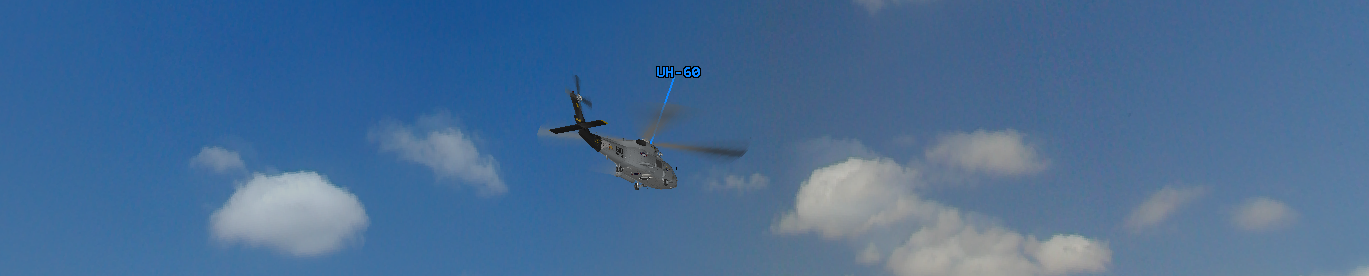
Say hello to "sky domes" – a 3D model freely available to enhance your STK experience by adding a graphically pleasant touch of realism to your scenario.
Where can I download this 3D model or make one by myself?
AGI provides a variety of 3D models for STK users. You can find them at this address, under the section "Resources", and "3D Models":
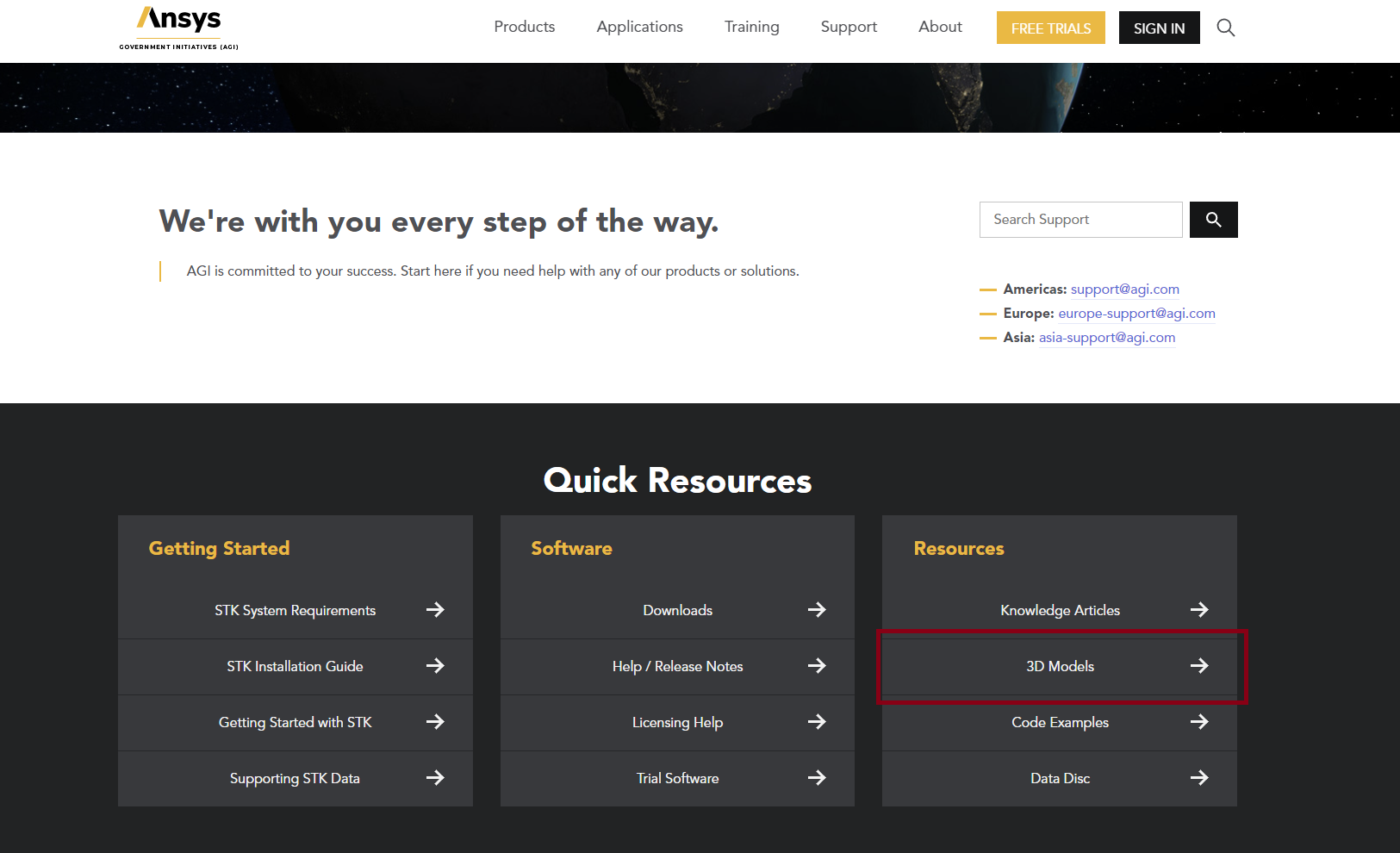
After signing in, you can search for and download any of them.
For our particular model, we will look for the model called "Sky Dome":
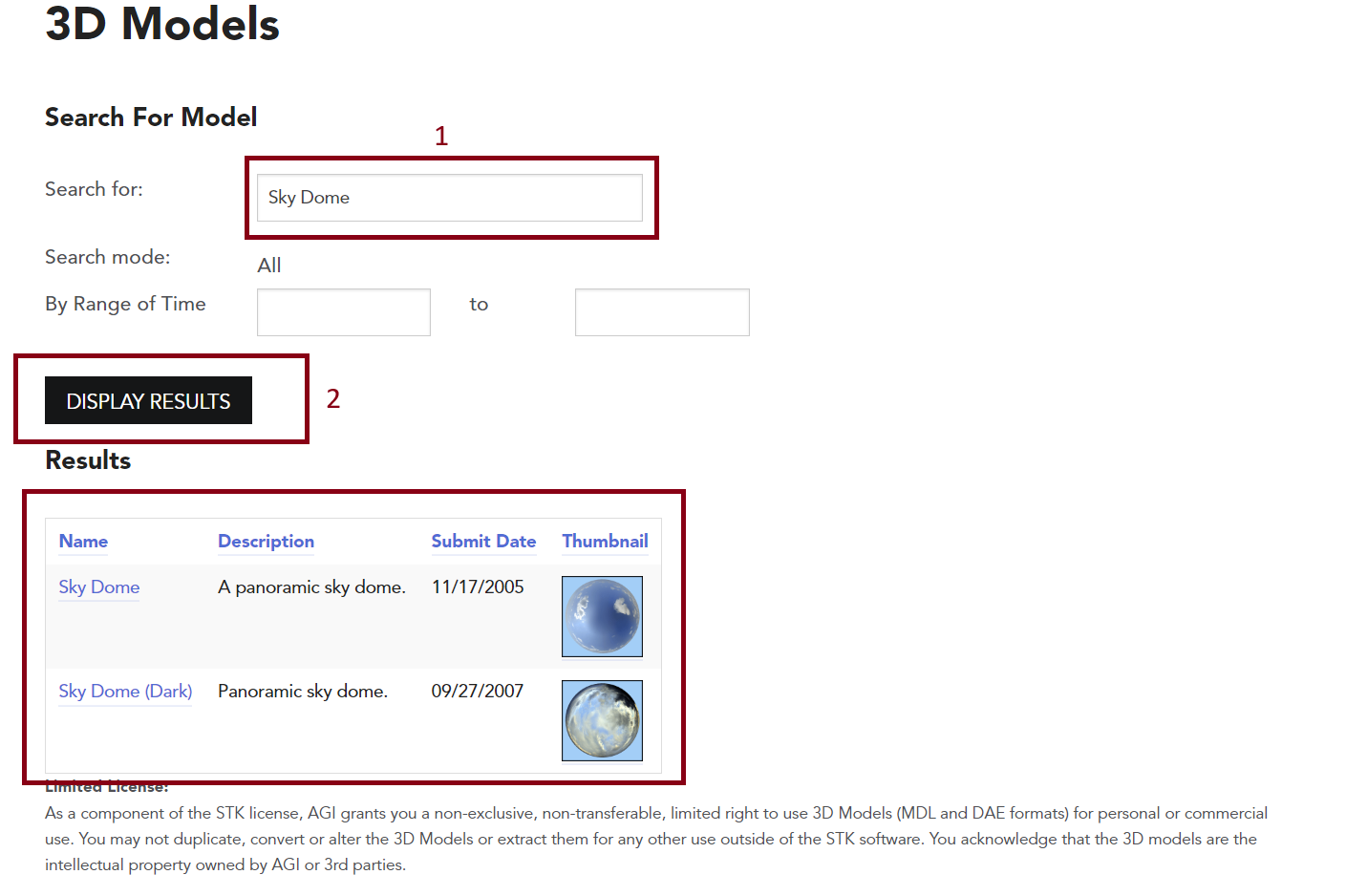
After clicking on either of these (the Dark version is the night time version of the dome), just click the "Download Model" button and make sure to save it in your scenario folder.
You can then extract the .zip file in your scenario folder and begin to use it in your STK scenario.
After opening your scenario, place a Facility object at what you will define as the center of your dome, so as close as possible to the main area of operation of your assets. We will name it "SkyDome"
In our case, we chose the center of Taipei.
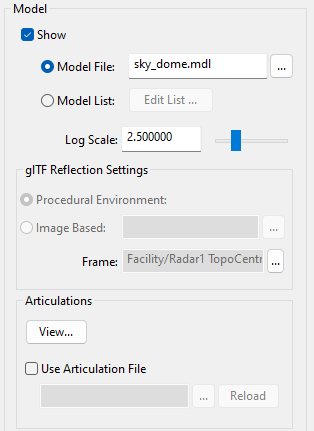
After defining your Facility location in the Basic - Definition page of your Facility's properties, you can insert your new 3D Model in the 3D Graphics - Model page and execute the following steps:
- In the model page, make sure that the Show box is checked, and in the Model File, click the ellipsis button and navigate to the folder you previously downloaded extracted in your scenario which contains your 3D model. There, select the .mdl file called "sky_dome.mdl" if you used the day time sky dome.
- In the Log scale box, make sure to enter the value 2.5. You can adjust to your preference, but this will basically adjust the size of your dome in your 3D Graphics Window.
- Click OK.
Your properties should be set as:
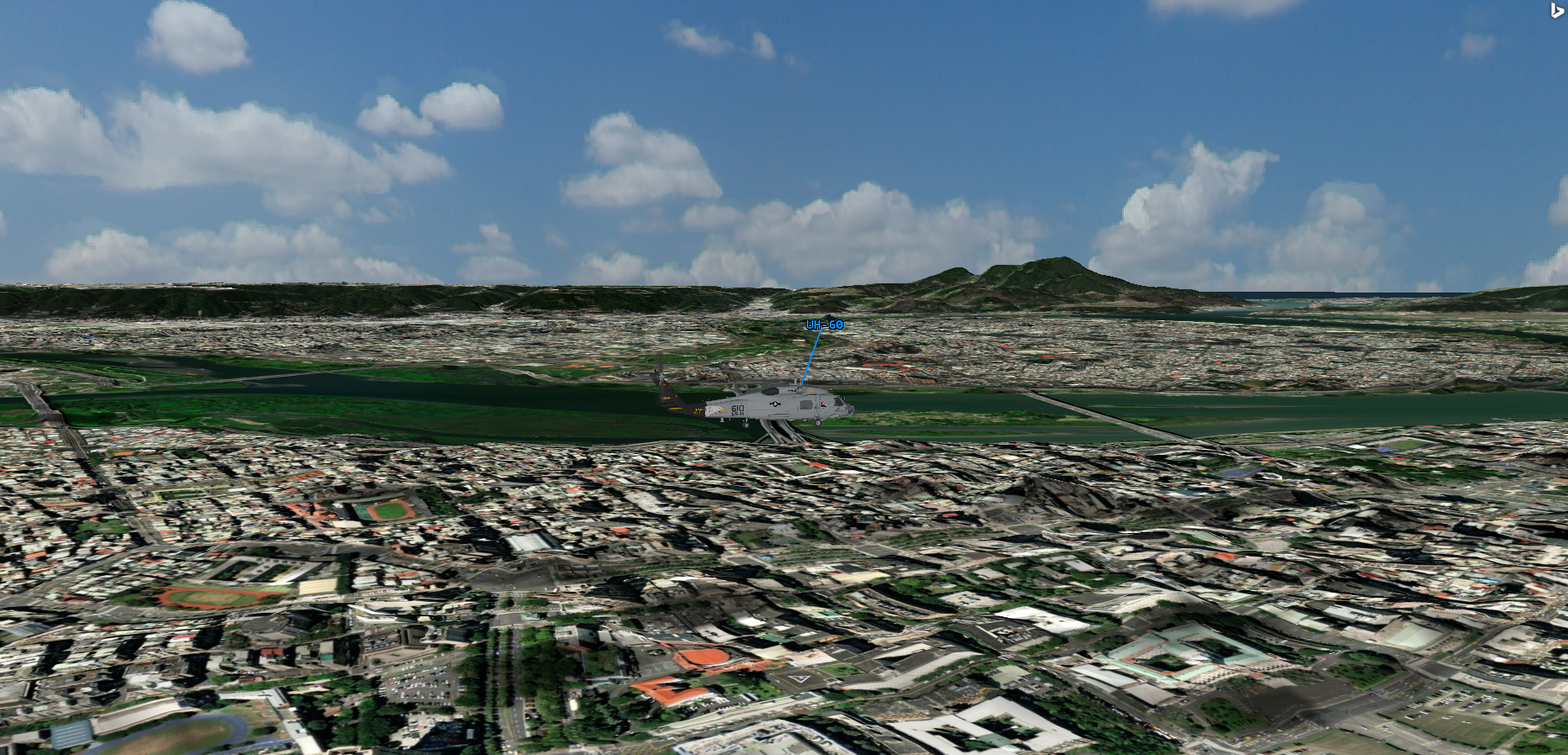
Finally, you can zoom to your facility, and you should be able to see a dome covering the area with clouds and a clear sky instead of the typical celestial background:
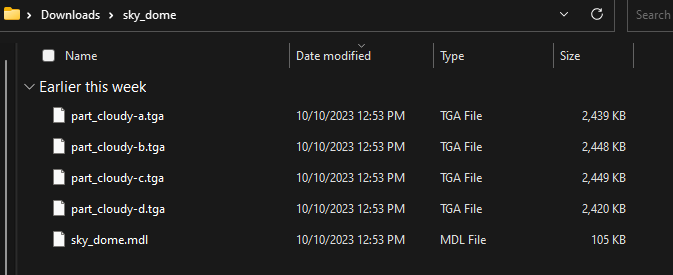
Now, you should be also able to edit your own sky domes by replacing the 4 cloud .tga files by other tga files from 360 panoramic pictures. These .tga files are to be set in the same folder as the .mdl file which reads them and is basically code. These files for the sky dome that we downloaded are organized like this:
With their ability to infuse realism and visual appeal into your simulations, these sky domes have become a great asset for STK users seeking to bring their Earth's surface-based scenarios to life.
The sky's no longer the limit; it's just the beginning of your STK 3D visualization journey. So, go ahead, elevate your STK experience with these stunning 3D modeled sky domes, and watch your scenarios come to life in ways you never thought possible.
If you have any further questions or need assistance, we are here to help! Our dedicated Tec-Support team is ready to provide prompt and personalized assistance tailored to your needs. Please don't hesitate to reach out by submitting a ticket by going to https://lsas-tec.freshdesk.com/support/tickets/new. We look forward to assisting you and ensuring a positive experience.
Thanks,
LSAS Tec-Support Team
Was this article helpful?
That’s Great!
Thank you for your feedback
Sorry! We couldn't be helpful
Thank you for your feedback
Feedback sent
We appreciate your effort and will try to fix the article