Google 3DTiles
Photorealistic 3D Tiles are a 3D mesh textured with high resolution imagery that offer high-resolution 3D maps in many of the world's populated areas. They let you power next-generation, immersive 3D visualization experiences to help users:
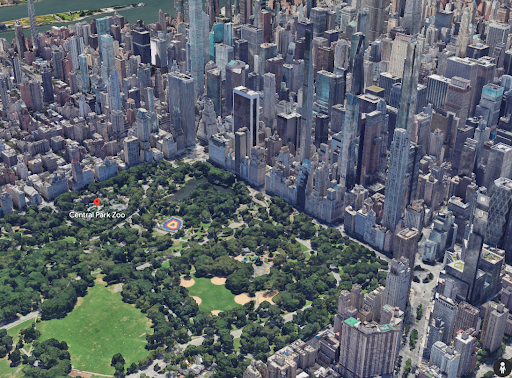
- Understand an area
- Confidently navigate to a location
- Evaluate new places to make decisions
- Understand how the analysis interacts with the real world
- Provide situational awareness
Google Developer Page: Photorealistic 3D Tiles | Google Maps Tile API | Google for Developers
 Cesium 3DTiles
The 3DTiles format is an OGC standard for sharing and streaming 3D geospatial information. This format was pioneered by the CesiumJS team, which was founded originally within Analytical Graphics Inc. (AGI) prior to AGI’s acquisition by Ansys circa 2021. This is important because the STK development team and Ansys retain a strong development relationship with the Cesium team to ensure data interoperability between tools like STK and the Cesium tools and data formats. STK standardizes the ability to ingest and utilize 3DTiles data sets.
Cesium 3DTile Information: 3D Tiles – Cesium
Streaming Google 3DTiles to STK
Users can configure STK to leverage Google’s 3DTiles and enjoy streaming this high-resolution global dataset into their STK modeling and simulation environment, bringing a powerful level of realism and detail to their scenarios.
Accessing 3DTile Data
STK has been able to leverage 3DTiles data for quite some time, and the normal process for introducing 3DTiles has been to simply point to where the data is stored, such as a local directory on the user’s machine, a network drive location, or some other accessible storage location.
In addition, STK offers native support for users to stream 3DTile data from Cesium’s Ion platform. This is a convenient way for existing Cesium Ion users to leverage the Cesium Ion web platform to upload discrete datasets, utilize Cesium Ion’s meshing and tiling services, and then provide a streaming service back to other Cesium web applications or applications such as STK which can be configured to authenticate the user with their Cesium Ion account information and make their datasets available to their STK application and scenarios.
Details of how to interact and interface with Cesium Ion is outside of scope here, but refer to Cesium ion Access Tokens – Cesium to understand how Cesium Ion allows direct API access via API Tokens for all of their users. Specific instructions to configure STK to point to Cesium Ion’s services and utilize these API Tokens can be found here: Cesium ion Preferences (agi.com)
Configuring STK for Google 3DTiles
Similar to how Cesium Ion provides an API Token approach to authenticate users and allow their datasets to be streamed to client-side applications, Google allows their developer customers to create applications utilizing their various data sets and services in much the same way. This starts with having a Google Developer account configured to provide an API token for the Google Map Tiles API. In the below image you will see the Google Cloud console, with two important pieces highlighted:
- Google Cloud ‘PROJECT’- Users must have a Google Cloud project to then associate certain API’s against. You can think of these as configurations for developers to package access to certain API’s that might be available for their use in creating their own Google enabled web applications, mobile apps, or other projects where developers may want to leverage Google’s various datasets or services.
- Map Tiles API – this is the API of interest to us here, as this supplies the endpoints that STK will query against to retrieve and stream the Google 3DTiles data. You will need to ensure that this API is ‘Enabled’ if it is otherwise in a ‘Disabled’ status.
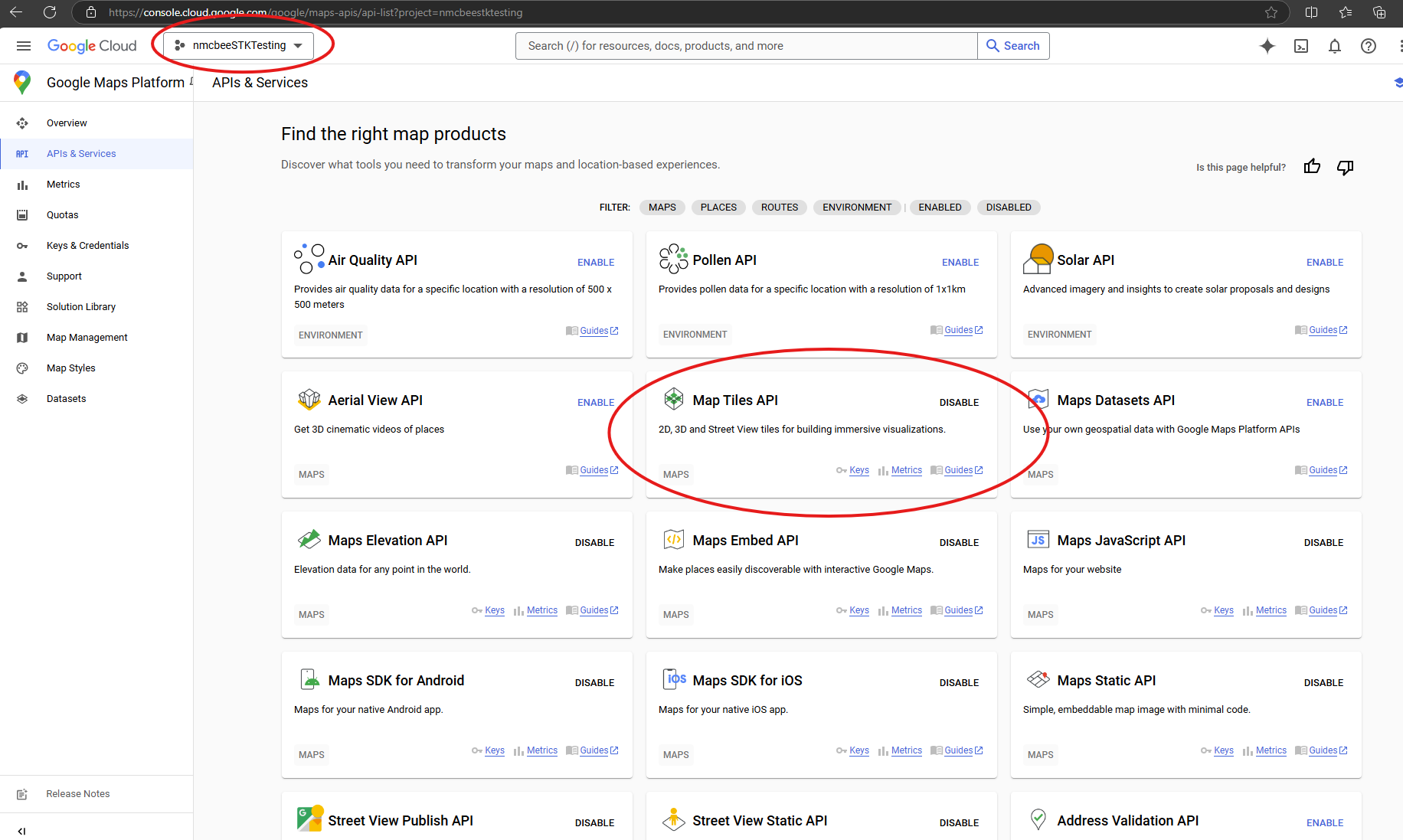
As this is a part of the larger ‘MAPS’ API grouping, you may not have this particular endpoint set to ‘Enabled’ so you can be sure to enable it from your API’s & Services page of your Google Cloud account management.
Now that you have both a Google Cloud ‘Project’ and the appropriate API’s enabled for it, you simply need to discover your API Token for use with STK. If you navigate to ‘Keys and Credentials’, you should find the ‘MAPS API’ key, which you can choose the ‘Show Key’ option to reveal your exact Token.
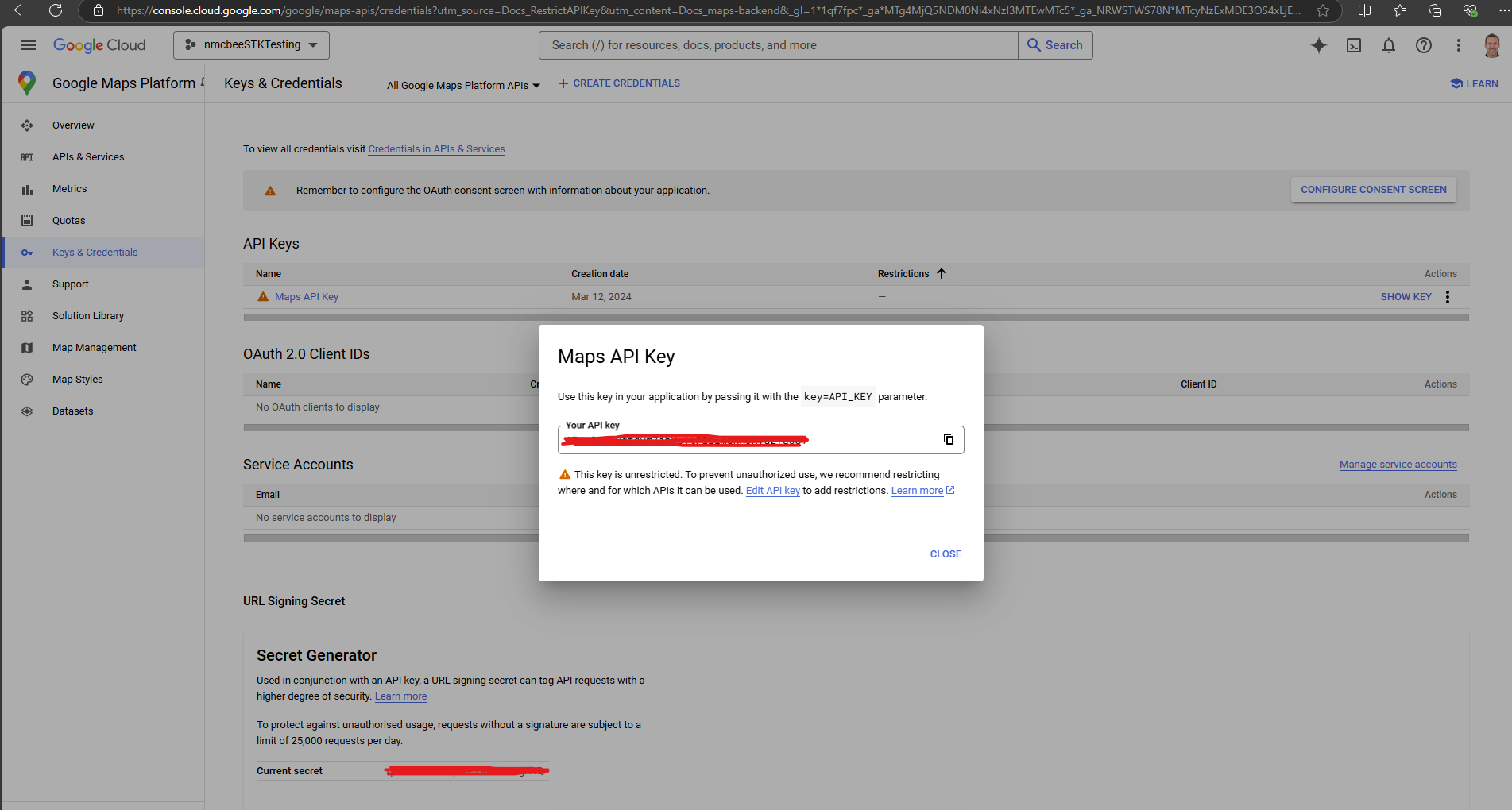
Keep this SECRET! It is yours, and is tied to your own Google billing account, so you won’t want others using/abusing it at risk of potentially being billed for the usage. Fortunately, the Google Maps API provides a generous amount of monthly usage before billing starts, which is likely sufficient for demonstration and testing, but is meant to be scaled for your project’s use once it is into production.
Billing/Usage Details:
Platform Pricing & API Costs - Google Maps Platform
Google provides $200/month worth of ‘credit’ to each Maps account, which likely covers single user usage rates for developing and testing.
For reference, the Photorealistic 3D Tiles data is billed at a rate of $6 for every 1000 Root Tile Requests. So, users will not begin to incur charges until they exceed 33,000+ requests within a given month.
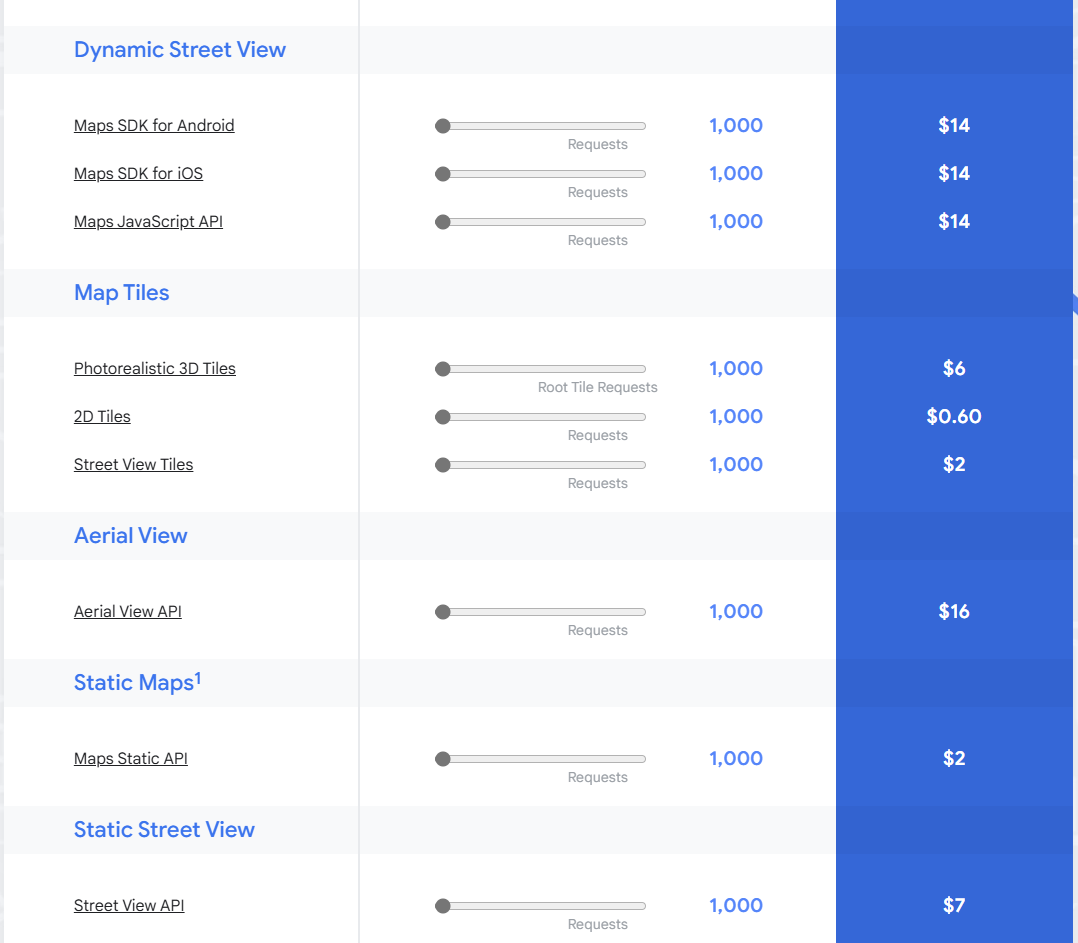
Google provides detailed instructions on setting up your Google Developer account, configuring projects, billing, etc. here:
Set up your Google Cloud project | Maps JavaScript API | Google for Developers
Configure STK with your Google API Token
Now that you have your Google API Token, you will want to configure STK with this so that you can begin streaming data into STK directly.
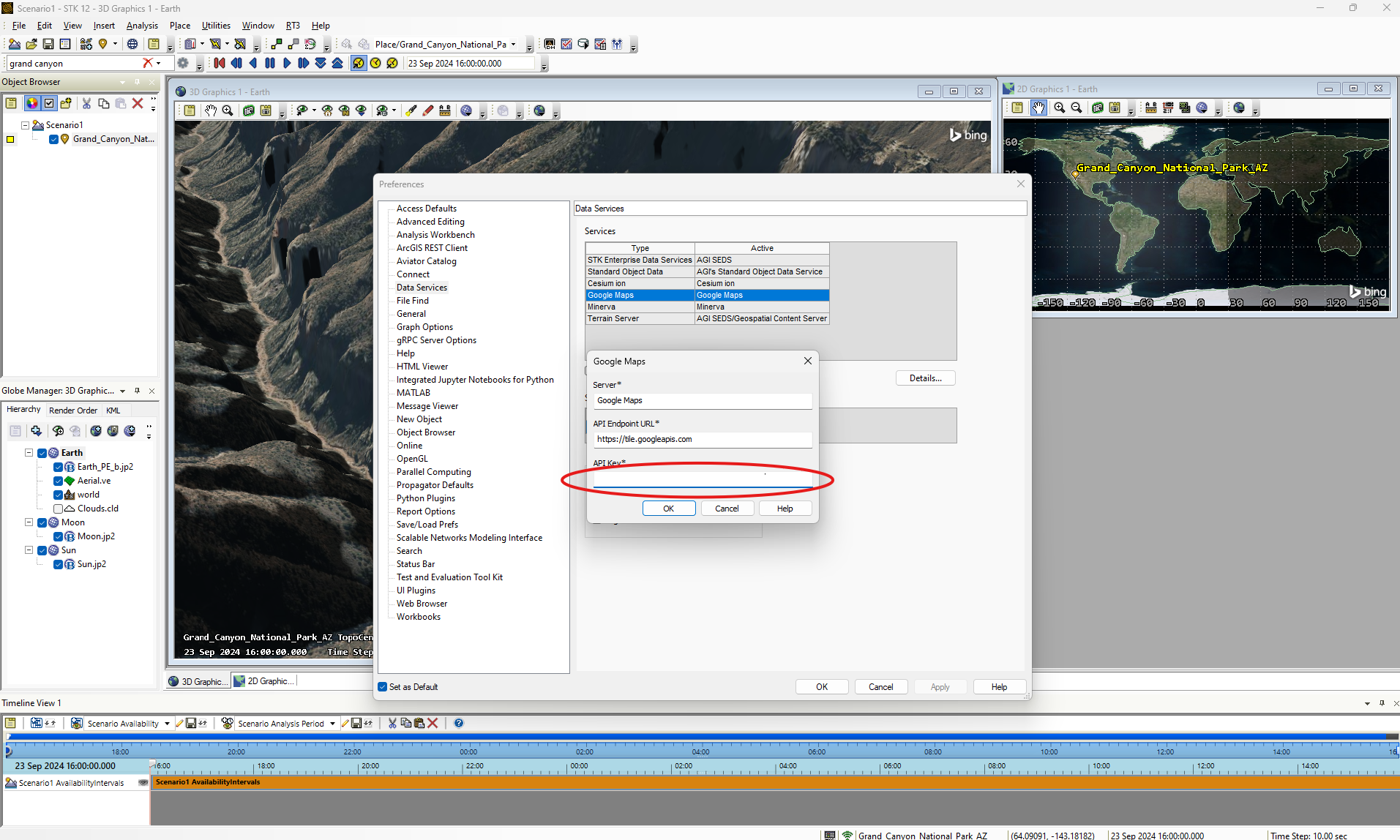
In STK, navigate to:
Edit>Preferences>Data Services
Here you will see the Google Maps service listed, and you will simply need to select this data service and click ‘Details’ to open up the specific settings for that service. You can then supply your unique API Token and click ‘OK’
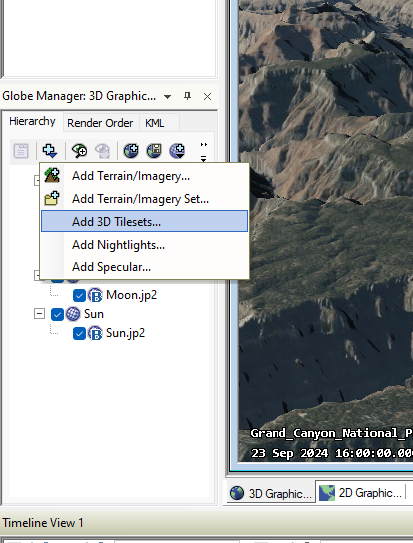
You will now be able to use the Globe Manager to “Add 3D Tilesets…”
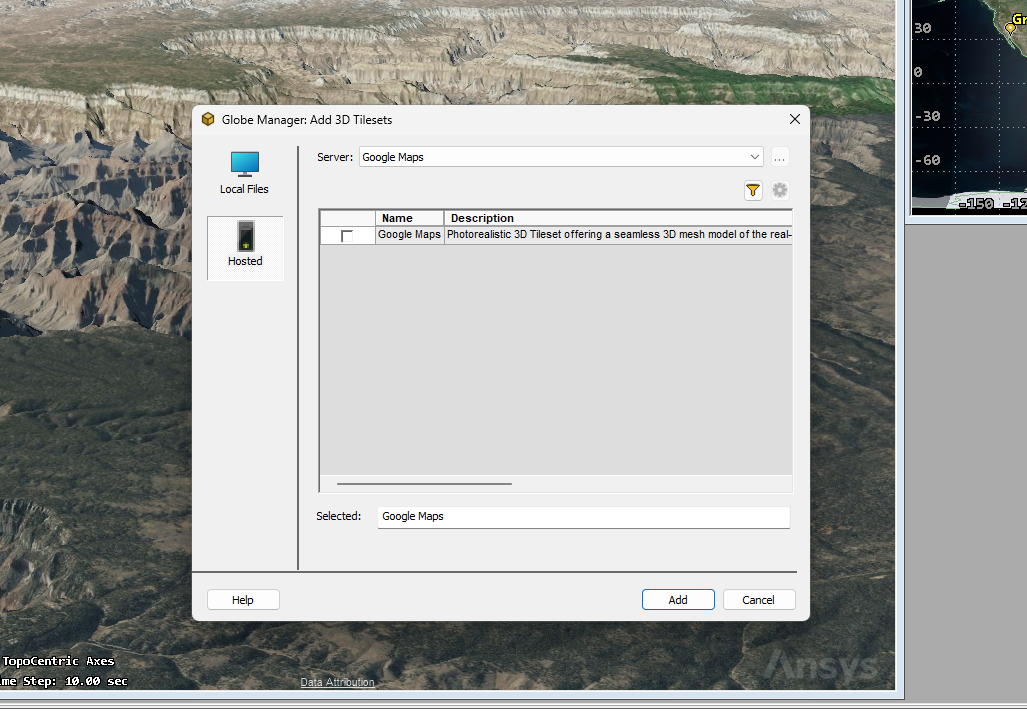
You will then want to ensure you are selecting the ‘Hosted’ option for the tilesets, using the ‘Google Maps’ server option in the drop-down menu, and simply activating the check box next to the Google Maps option listed.
Once you click ‘Add’, the data service may ask you about removing previous globe data in the interest of performance since this new data will cover the full global scope. This is up to you of course, but after choosing to either replace or keep any existing data you have, you should then be able to zoom to most anywhere on the globe and enjoy the high-resolution streaming terrain from Google!
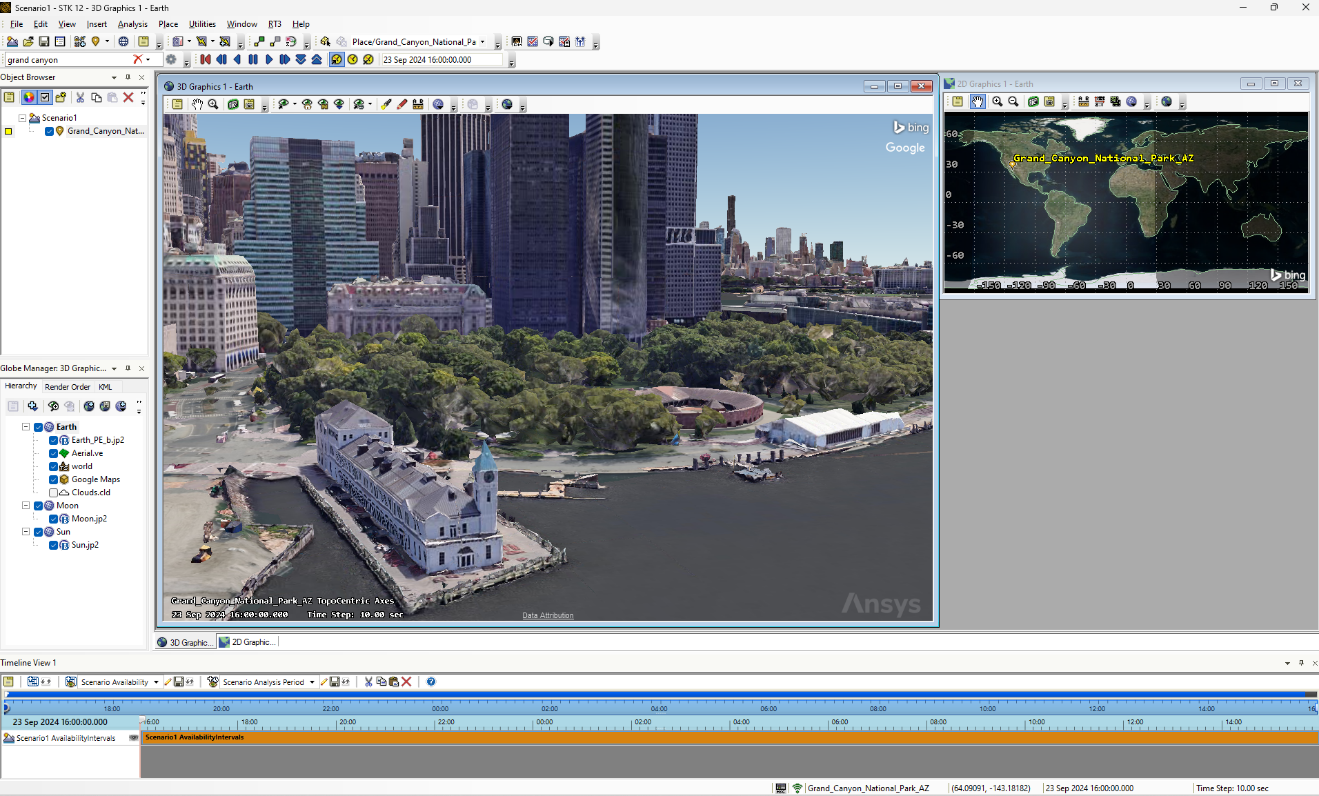
NOTE: This streaming data is limited to visualization ONLY at this point. Google’s terms of service restrict anyone from using their data for analytical purposes, which means STK cannot leverage this data for querying altitudes, sensor obscurations, or anything else other than just the visualization of the data. Hopefully this is something that will be relaxed in the future or perhaps available through data partnership options, but for now this data is simply a richer visual enhancement for STK scenarios. Its value for situational awareness and decision support is one that shouldn’t be undervalued of course.
Was this article helpful?
That’s Great!
Thank you for your feedback
Sorry! We couldn't be helpful
Thank you for your feedback
Feedback sent
We appreciate your effort and will try to fix the article