STK can model high-fidelity space-to-space imaging for electro-optical and infrared sensors in its EOIR module, providing an accurate prediction of what a real sensor would see in various imaging conditions for various target models. EOIR has a wide assortment of 3D models for targets ranging from simple shapes to satellite 3D models. This article will discuss the various target models in EOIR.
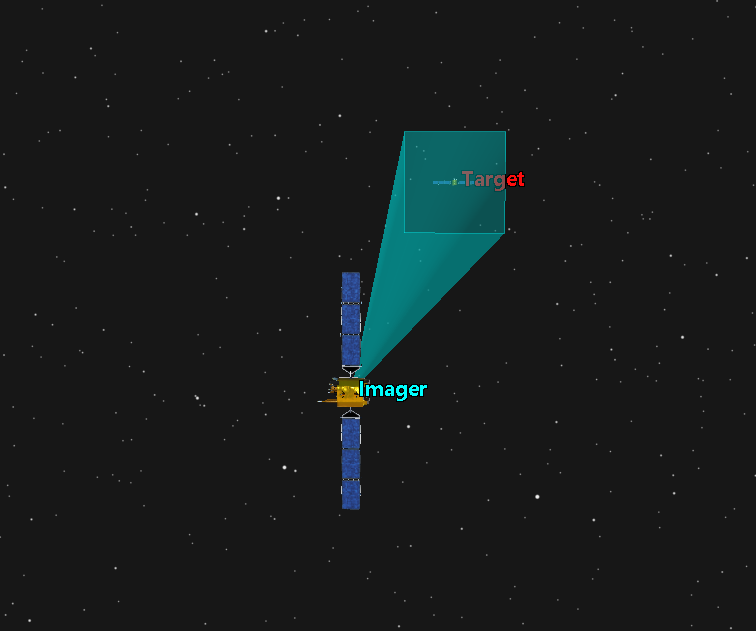
This article discusses the EOIR module, which requires STK Premium (Air and Space) or Enterprise.
EOIR Default Shapes
You can select one of the various default shapes in EOIR from the target object’s Properties -> Basic -> EOIR Shape page.
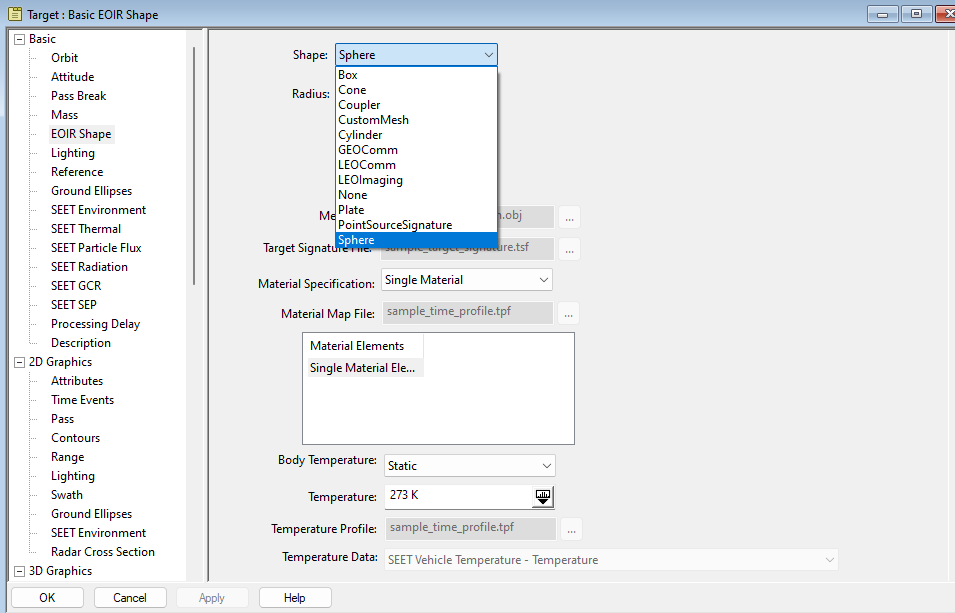
For more info on the settings in the EOIR Shape properties page, refer to its entry in the STK Help page.
Here’s what the default sphere looks like in EOIR:
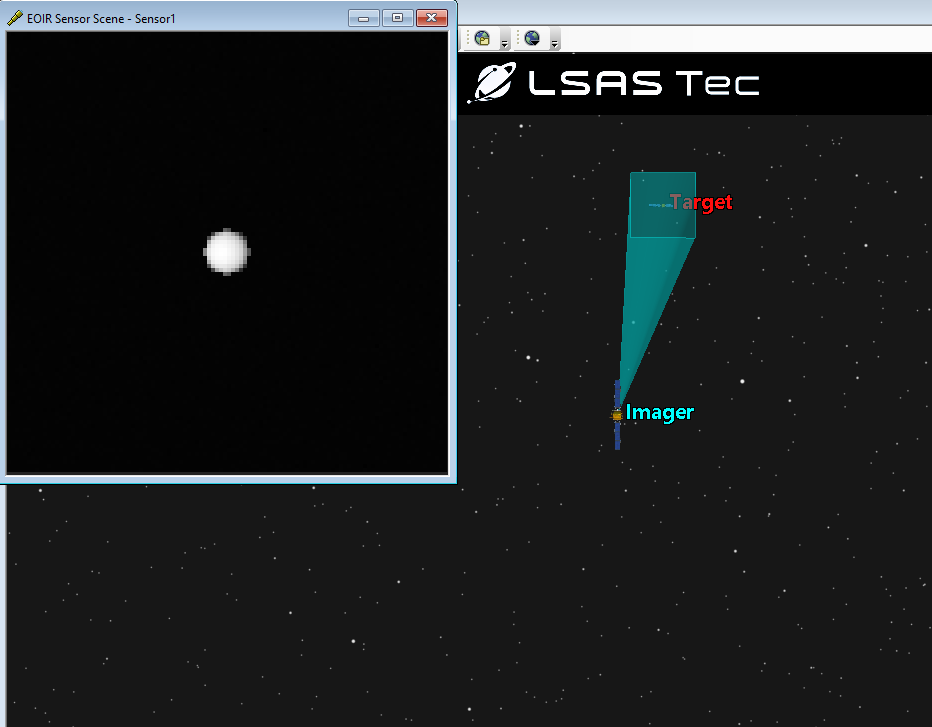
Note: For the EOIR screenshots shown, we created two circular orbits with a small true anomaly offset, then adjusted the scenario time to one with good lighting conditions for imaging. Note that the sensor’s sensitivity had to be tweaked to pick up the target.
EOIR also has three default satellite models you can easily select from the EOIR Shape page. Below is the LEOComm model, rendered in EOIR:
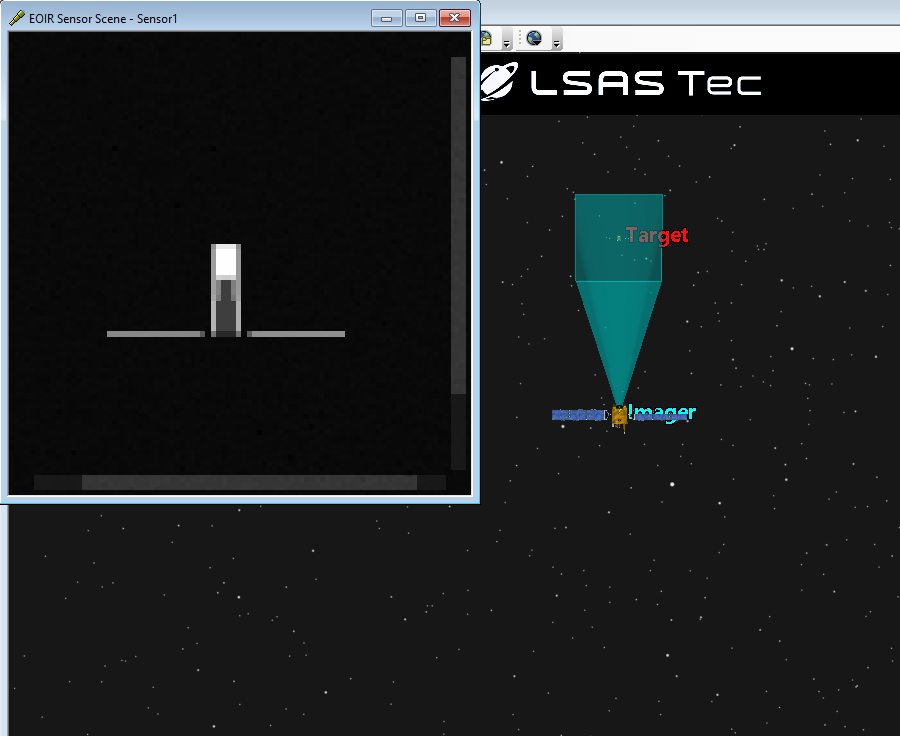
There are three mesh shapes for satellites available as selectable defaults in EOIR. Below is the 3D model equivalent to each of these defaults:
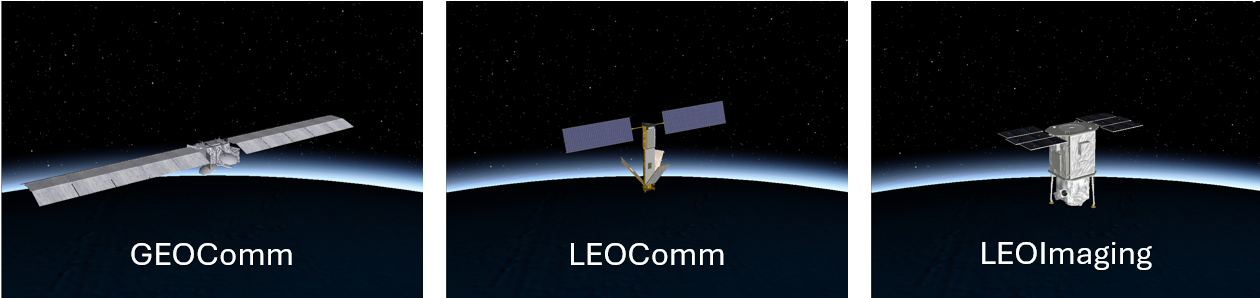
Shown are the 3D models that were used to create the EOIR default mesh shapes. EOIR shapes use the .obj filetype which is a simplified format compared to the .mdl filetype used for 3D graphics in STK. The .mdl model used in 3D graphics is selected in 3D Graphics properties for an object, while the .obj model used in EOIR rendering Is set in the EOIR Shape properties, as mentioned earlier.
It’s helpful to set the target object’s model to match its EOIR properties to get a better understanding of the target being observed. To do this, open the target’s properties, go to 3D Graphics -> Model, and choose the model file you would like to use.
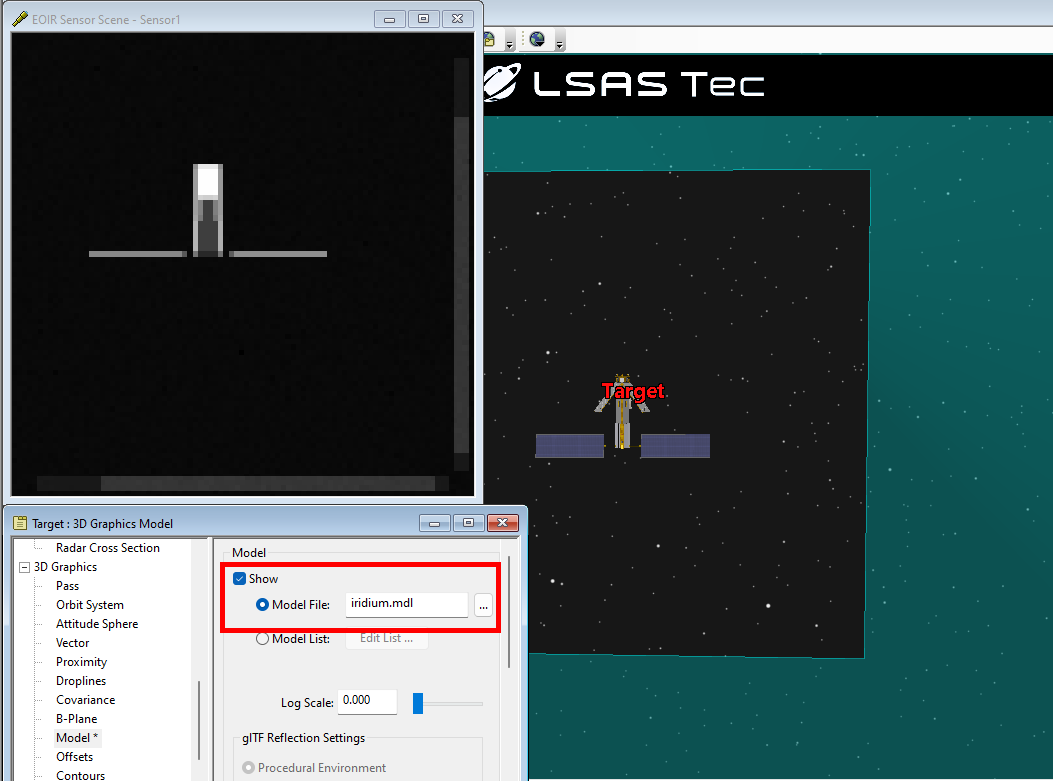
The 3 default EOIR satellite mesh shapes correspond to the following STK model files:
GEOComm = anik_f1.mdl
LEOComm = iridium.mdl
LEOImaging = quickbird2.mdl
More Custom Meshes
Custom meshes are stored as .obj files. EOIR has many additional .obj files for use in EOIR, many of which have matching STK model files. The default folder for these is in your STK install at:
(C:\Program Files\AGI\STK 12\EOIR_Databases\PropertyFiles\CustomMeshes.)
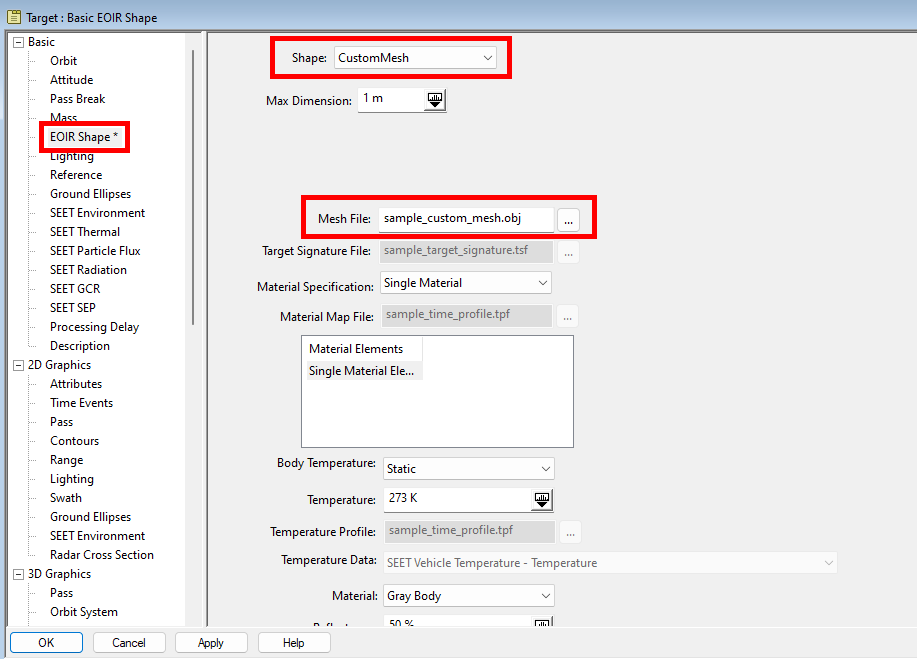
To use a custom mesh for an EOIR target, open the target’s properties, go to EOIR Shape, and in the Shape: field, select Custom Mesh. Then select a mesh file of your choice in the Mesh File: field.
Adding Custom EOIR Shapes
It is also possible to make your own .obj files. Wavefront Obj (.obj) files are a simple text-based 3D model file format. They are made up of four different elements; Vertices(v), Texture Coordinates(vt), Normals(vn), and Faces(f). The Texture Coordinates and Normals are optional parts of the .obj filetype and are not required to define it. They can also contain material (.mtl) files used to define colors and textures. A simple .obj file can be created by manually defining each of these properties in a text editor and saving it as an .obj file type:
# Simple Octahedron
# 6 vertices
# Vertices
v 0.0 1.0 0.0
v 1.0 0.0 0.0
v 0.0 0.0 1.0
v -1.0 0.0 0.0
v 0.0 0.0 -1.0
v 0.0 -1.0 0.0
# Material and shading
usemtl Default.022
s off
# 8 faces, each defined by 3 vertices
f 1 2 3
f 1 3 4
f 1 4 5
f 1 5 2
f 6 3 2
f 6 4 3
f 6 5 4
f 6 2 5

The simple octahedron .obj as seen in EOIR.
More detailed .obj models can be created in 3D modeling software such as Blender. There are also .obj file viewing and editing extensions in VS Code. There are also many free and paid .obj models available online for 3D printing, development, and animation. Many of which can be altered to use as custom EOIR meshes.
Next Steps
To learn more about EOIR and its capabilities, visit the STK Help page for EOIR:
EOIR Overview (agi.com).
Also be sure to check the LSAS Knowledge base for more helpful STK tips and walkthroughs:
Solutions : LSAS Tec (freshdesk.com)
If you have any further questions or need assistance, we are here to help! Our dedicated Tec-Support team is ready to provide prompt and personalized assistance tailored to your needs. Please don't hesitate to reach out by submitting a ticket by going to https://lsas-tec.freshdesk.com/support/tickets/new. We look forward to assisting you and ensuring a positive experience.
Thanks,
LSAS Tec-Support Team
Was this article helpful?
That’s Great!
Thank you for your feedback
Sorry! We couldn't be helpful
Thank you for your feedback
Feedback sent
We appreciate your effort and will try to fix the article